
Project Gotham Racing 2 (pgr2-recomp)
Project Gotham Racing 2
Sobre el proyecto
Project Gotham Racing 2 es un videojuego de carreras desarrollado por Bizarre Creations y publicado por Microsoft Game Studios. Fue lanzado exclusivamente para Xbox en noviembre de 2003.
Información oficial del proyecto
Project Gotham Racing 2 - XBE Recomp
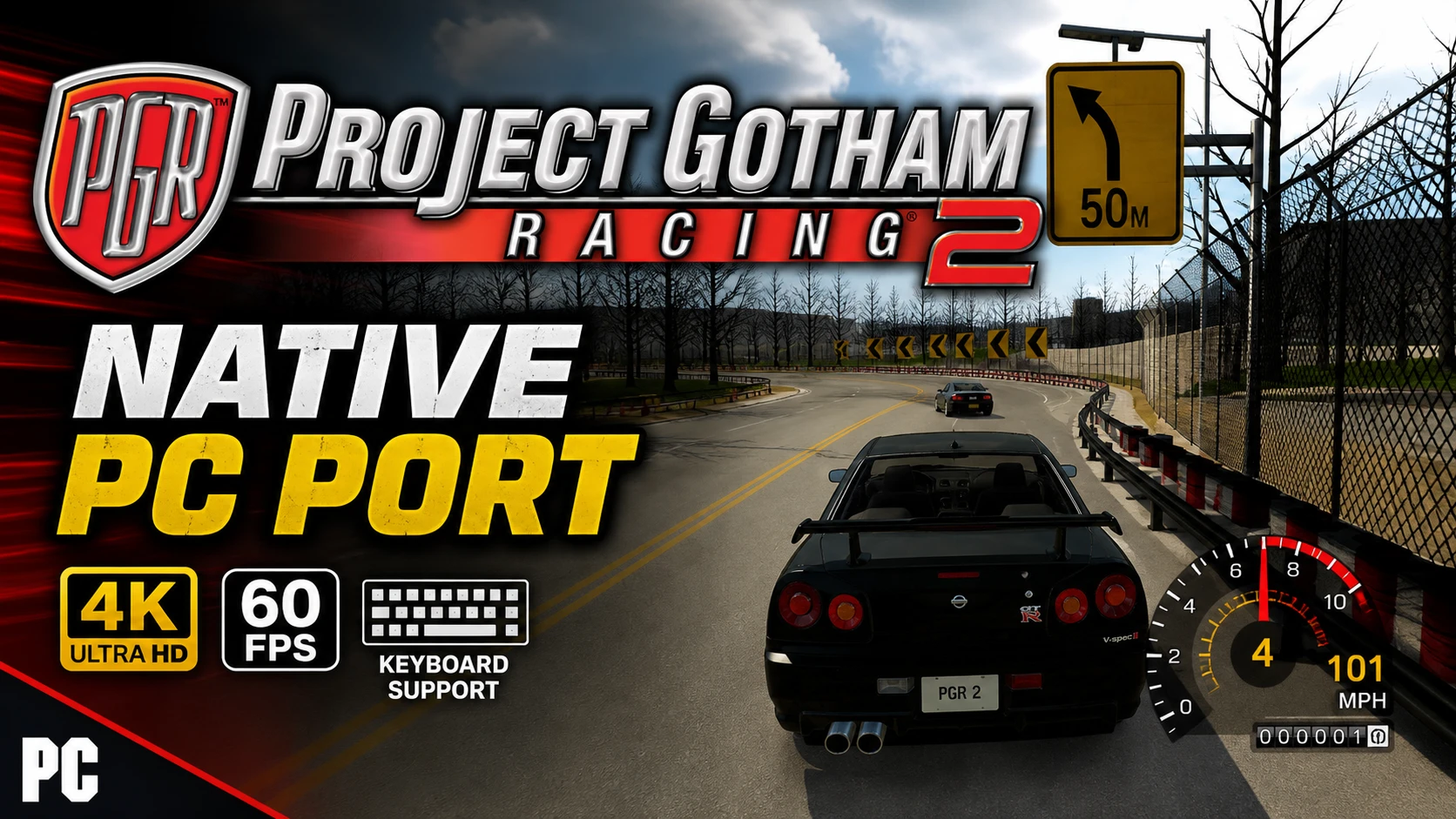
An unofficial native PC port of the original Xbox version of Project Gotham Racing 2, with extended graphics options and other enhancements. The game's own x86 code is statically recompiled into a Windows executable with the Xbox XBE Recomp tool; the Xbox's graphics, sound and system libraries are reimplemented for Windows (Direct3D 12 or 11, XAudio2, SDL). It is not an emulator.
[!NOTE] This project does not include any game assets. You must provide the files from your own legally acquired copy of the game to build and play.
Supported Version
The European (PAL) and North American (NTSC) Xbox releases of Project Gotham Racing 2 (title id 4D53004B):
| Release | default.xbe SHA-1 |
|---|---|
| Europe (PAL), version 2 | 676895b86f01938804c5f1cdcad8b44044295cb4 |
| North America (NTSC), version 5 | ec6e902fc167de349f1dc1838a7441dfff932c62 |
| Europe (PAL), media patched | acd776330a9b903fd567b544cf7ece0f612f6c7d |
| North America (NTSC), media patched | 702b79fd3bc844a413cbc26404718b1bf7e44e87 |
The executable is recompiled from the PAL file. The North American default.xbe differs from it only in its signature
and certificate (region, version, signing keys); every byte of code and data is the same, so the same executable runs
it. A media patched copy (made to run from a modded console's hard disk) changes one byte of start-up code that the
port replaces anyway, so it runs too. The log (logs\pgr2.log) names the SHA-1 of the default.xbe it found. Any other release (the Japanese one, for
example) has not been checked and the game asks before starting it.
Getting Started
There are two ways to get the game running. Both build the game's code on your own PC from your own disc: it is never downloaded, only the program around it.
The launcher (recommended)
PGR2Launcher.exe does everything for you: no Visual Studio, no Git, no command line, nothing installed in Windows
and no admin rights needed.
You need:
- Windows 10 or 11, 64 bit, and a GPU with Direct3D 12 or 11.
- Your own copy of the game (PAL or NTSC): an
.isoimage of your disc, or a folder with the disc's files. - About 1 GB free, plus room for your copy of the game, and an internet connection for the game's package (about 70 MB).
Steps:
- Download
PGR2Launcher.exefrom the latest release. - Put it in a folder of its own with a short path (for example
C:\Games\PGR2) and run it. Everything it makes goes in aPGR2folder beside it. Windows may warn about an unrecognised app: choose More info, then Run anyway. - Your game: choose your disc image or the folder with the disc's files. The launcher checks that it is a supported release.
- Get the game ready: the launcher downloads the game's package (the program and a compiler, no game code), then your PC builds the game's code from your disc. That took about 20 seconds on a fast 16 thread PC; it depends on your PC and connection. You can stop at any time; it carries on where it left off.
- Play: press Play. The first start sets up the emulated hard disk and copies the game's cache while the intro movies play (about two minutes); later starts are quick.
When a new release is out, the launcher offers it at the top of its window: Update the launcher downloads it, checks it and restarts, then Update puts the new version in place, keeping your saves, settings and music. The new version is built beside the game and only replaces it once it is ready, so a failed or stopped update leaves the game as it was.
Coming from 1.5.1 or earlier: those versions built everything from source with about 1.4 GB of tools. The new launcher shows A faster way to play: press Update. Your game keeps playing until the new one is ready, and your saves, settings and music are kept. Afterwards, Manage > Remove the old build tools frees about 2 GB (FFmpeg, for your music, stays).
The launcher's pages: Game (your disc, the steps, Play), Your music, Manage (the install, its folders, removing build files, building the game again if it will not start) and Log.
Files, all under the PGR2 folder beside the launcher:
play\the game:PGR2.exe,PGR2.dll(the game's code, built on your PC),pgr2.toml(settings),hdd\(profiles, saves, caches and your music),logs\pgr2.log(the game's log),achievements.toml,compiler\(what builds the code)launcher.logthe launcher's log (send it with any problem)tools\ffmpegonly if you import your music
To remove everything, delete the launcher and its PGR2 folder (keep play\hdd if you want your saves).
Building from source (developers)
You need: Windows 10 or 11 (64 bit), Git, Visual Studio 2022 (Community is
fine) with Desktop development with C++ (build.bat offers to add C++ Clang tools for Windows and C++ CMake
tools for Windows), about 3 GB free, and your disc's files: default.xbe and its folders (Cache, CarDynamics,
data, Frontend, Game, media, ...), or an .iso image of the disc.
- Clone the repository with its SDK:
Cloned withoutgit clone --recurse-submodules https://github.com/hk21x/pgr2-recomp.git cd pgr2-recomp--recurse-submodules? Rungit submodule update --init. - Put your game files in the
assetsfolder:assets\default.xbewith the game's folders beside it. With an.iso, put the.isoinassetsand also copydefault.xbeout of it intoassets(the build recompiles from that file). - Run
build.batfrom Explorer or a command prompt. The first build takes a few minutes on a fast PC (the launcher's old whole build took under 5 on a 16 thread one), longer on a slower PC; later builds are quicker. On Windows the game's code is built intoPGR2.dllbeside the exe. Do not runxbe_symbolsor editconfig\game.toml: the committed configuration is the one for the supported release. - Answer Y to "Play now?", or run
out\build\release\PGR2.exe. It finds theassetsfolder beside itself or in any folder above it.
launcher.bat builds PGR2Launcher.exe itself. Files the game writes beside the exe: pgr2.toml (settings), hdd\
(saves and caches; delete it to start again from a first boot), logs\pgr2.log, achievements.toml, and
CrashDumps\ if it crashes.
Controls and Settings
Settings window: press F1, or Back + Start on a controller, or choose Options > General Options > PC Settings in the game's menus. Tabs: Display, Graphics, Game, Achievements, General and Controls. Changes are saved at once. Quit game (top right) closes the game, as does Alt+F4.
Keyboard (plays as controller 1 while the window has the focus; remap in Controls, two keys per input):
| Console input | Keys |
|---|---|
| Steer / menus (left stick) | Arrow keys, or A / D |
| Accelerate / brake | W / S |
| A / B / X / Y | Enter or Space / Backspace / Q / E |
| Black / White | R / F |
| Start / Back | Escape or P / Tab |
| D-pad | Numpad 8 / 2 / 4 / 6 |
| Right stick, stick clicks | I J K L, C and V |
Controllers: Xbox, PlayStation and Switch controllers, with hot plugging and rumble; any console input can be mapped to any controller input in Controls.
Graphics settings
In Options > General Options > Recomp or the settings window (F1); they apply at once. Each comparison is one paused frame at 3440x1440.
<p align="center"> <img src="docs/images/pgr2-settings-wipe.webp" alt="A wipe across a yellow Carrera GT between all settings off and the recommended settings" width="800"> <br> <i>All off vs. the recommended start for a capable PC: render scale 200%, MSAA 4x, smooth alpha edges, texture filtering 16x, sharpening 50%.</i> </p> <p align="center"> <img src="docs/images/pgr2-settings-car.webp" alt="Close-up of the car's roof and mirror with all off, MSAA 4x, FXAA and render scale 200%" width="800"> <br> <i>Edges around the car, enlarged three times.</i> </p> <p align="center"> <img src="docs/images/pgr2-settings-edges.webp" alt="A railing and bench with all off, MSAA 4x, FXAA and render scale 200%" width="800"> <br> <i>Fine detail, enlarged twice.</i> </p>- MSAA smooths the edges of the 3D scene and keeps textures sharp. The more samples, the slower.
- FXAA smooths the finished frame, HUD included, and softens it a little.
- Render scale draws the picture larger than the screen: the smoothest fine detail, and the slowest.
- Sharpening makes the picture crisper. Around 50% is a good start; 100% turns walls and roads gritty.
- SMAA smooths the edges of the finished frame, HUD included, and softens surfaces a little.
- Smooth alpha edges softens leaves and other cut-out shapes, which MSAA alone leaves jagged. It needs MSAA on.
- Texture filtering keeps the road and its lines sharp into the distance. It has the clearest effect here.
- Scaling filter is a small gain: Sharp is a little crisper than Bilinear. It does nothing at 100%.
- Enhanced world textures only smooths the texture's pixels and adds no detail, and it can cause hitches of a quarter of a second. Best left off.
Features
Display
- Display Modes - Fullscreen, borderless window or window, at any resolution the monitor offers, applied at once.
- Widescreen - The game's own 16:9 mode (wider field of view, HUD at the edges), chosen from the screen's shape or set to 4:3 or 16:9.
- Ultrawide - Aspect ratio "Fill the screen": 21:9 and wider, the 3D views widened to the screen's shape at full sharpness, the HUD and menus kept in a centred 16:9 area.
- Frame Pacing - Runs at the game's own rate, menus at 60 and races at 30 as on the console, with vsync and a frame rate cap.
- Monitor - Chooses which display the game uses.
- FPS Counter - Shows the frame rate in a corner.
Graphics
- Render Scale - Renders at a percentage of the screen, from 25% to 200%.
- Renderer - Direct3D 12 (default) or Direct3D 11, at the next start; 11 for GPUs or drivers where 12 runs badly. Without Direct3D 12 the game starts on 11 by itself.
- Anisotropic Filtering - Up to 16x.
- Antialiasing - MSAA 2x, 4x or 8x on the 3D scene, or FXAA on the finished frame; render scale above 100% supersamples.
- Field of View - Widens or narrows the race cameras, 50% to 200% of the console's.
- Console Accurate Depth - W-buffered depth as the Xbox does it, keeping car bodies, showroom cars and street lights right.
- Reflections - Car paint and glass reflections from the game's environment cube.
Controller
Supports Xbox, PlayStation and Switch controllers, with hot plugging and rumble. Any console input can be mapped to any controller input.
Steering wheels and rigs - any DirectInput wheel, pedal box, button box or shifter, also spread over several USB devices; each control bound in F1 > Wheel by moving or pressing it, force feedback on the steering's device, and H-pattern shifters with a manual gearbox.
Keyboard
Plays as controller 1, with two keys for each console input, remappable in the settings window.
General
- Launcher -
PGR2Launcher.exe: choose your disc, Get the game ready, Play, Update; a prebuilt package and your PC builds the game's code from your disc, nothing installed. - Your Music - PGR2's custom soundtracks from a folder of your own music (MP3, FLAC, OGG, M4A, WAV and more): the launcher's Your music page converts it, each folder a soundtrack. In the game: Options > Sound / Music > PGR 2 Custom Soundtrack to build your playlist, then the Radio/CD options in a race's pause menu.
- Xbox Live DLC (experimental) - Paris, Long Beach and the 16 DLC cars from your own booster pack and title update files (F1 > Game); see WINDOWS.md.
- Recomp in the game's menus - Options > General Options > Recomp, or the pause menu in a race: every setting of this PC version in the game's own option rows, in sections (Picture, Performance, Display, Game, Controls, Wheel), changed with left and right and saved at once, and Quit Game. Binding a wheel or keys by pressing them, and achievements, are in the settings window, which Recomp opens.
- Screenshots - F12 saves the frame as a full resolution PNG in the
screenshotsfolder beside the game, without the settings window. - Settings Window - Press F1 or Back + Start on a controller for everything: display, graphics, game options, controls and the wheel. Changes made in either place are saved to
pgr2.toml. - Skip Intro - Goes straight to the title screen.
- Hide HUD - Clears the race HUD for screenshots and replays.
- Pause On Focus Loss - The game and its sound stop while another window is in front.
- Saves - Profiles, options and career progress are kept on an emulated hard disk beside the exe.
- System Link - Plays over the LAN, or by connecting straight to a friend's IP address (
join_ip). - Achievements - 64 achievements (Kudos World Series and class medals, Arcade, Kudos ranks, the garage, speed, wins, Geometry Wars) with pop-ups and a list in the settings window, written in RetroAchievements' condition format; the set and its memory map are in ACHIEVEMENTS.md.
- High Frame Rate Races - "Race Frame Rate" in Recomp or the settings window, at the next start: 30 as on the console, 60, 90, 120 or 144, with unchanged physics. Off by default. 60 holds on a fast CPU; above that busy streets dip on most CPUs, and a variable refresh display (FreeSync, G-Sync) hides dips best. Replays can dip at render scale 200%.
- Draw Distance - 25% to 400% of the console's (experimental: most streets end before the console's distance).
Miscellaneous
- Boot Splash - Place a
splash.png(or.bmp) beside the exe to display a splash screen at launch. - Diagnostics - Logs to
logs\pgr2.log, and offers frame captures (F3) and frame logs (F4). See WINDOWS.md.
Status
Boots, plays the movies and menus, races in every mode tried, saves and plays system link; flicker fixed, ultrawide, MSAA and the settings window in. Open: sound effects (reverb, filters) are not modelled, and races at 60 can dip below 60 in the busiest streets. Progress is in PROGRESS.md, and technical findings in FINDINGS.md.
Community and Support
Join the Discord server for help getting the game running, to report problems, and to talk about the port with other players.
Troubleshooting
- Something wrong: the first lines of
logs\pgr2.loglist the settings, the GPU and anyXBE_*orPGR2_*environment variables; leftover ones from experiments change how the game draws. WINDOWS.md lists the diagnostic switches (frame captures with F3, frame logs with F4,XBE_PERFtimings). - The launcher's build failing: send
PGR2\launcher.log(its Details section shows the same). Press Build again after a network problem: it carries on where it stopped. - The build stopping while it unpacks the Windows SDK (the last lines
extracting ... .msi): the launcher's folder path is too long for Microsoft's installer. MovePGR2Launcher.exeand itsPGR2folder to a short folder such asC:\Games\PGR2and press Build again. Launchers from 2026-10-27 on say so before building. - "Another release" in the log, or the game not starting: the
default.xbeis not one of the supported releases. - A first boot again (the cache, the intro movies): delete the
hddfolder besidePGR2.exe(PGR2\play\hddwith the launcher,out\build\release\hddwhen built from source). - Races dipping below the chosen frame rate: the limit is usually the CPU, in the busiest streets (draw distance above 100% adds to it). In replays it is the GPU: lower the render scale or MSAA. The console's 30 is the default.
Credits
- Xbox XBE Recomp, the recompiler and runtime this is built on.
- XenonRecomp for the overridable function layout and instruction hooks.
- Zydis for decoding x86 instructions, toml++ for the configs, Dear ImGui for the settings overlay and SDL for the window, input and controllers.