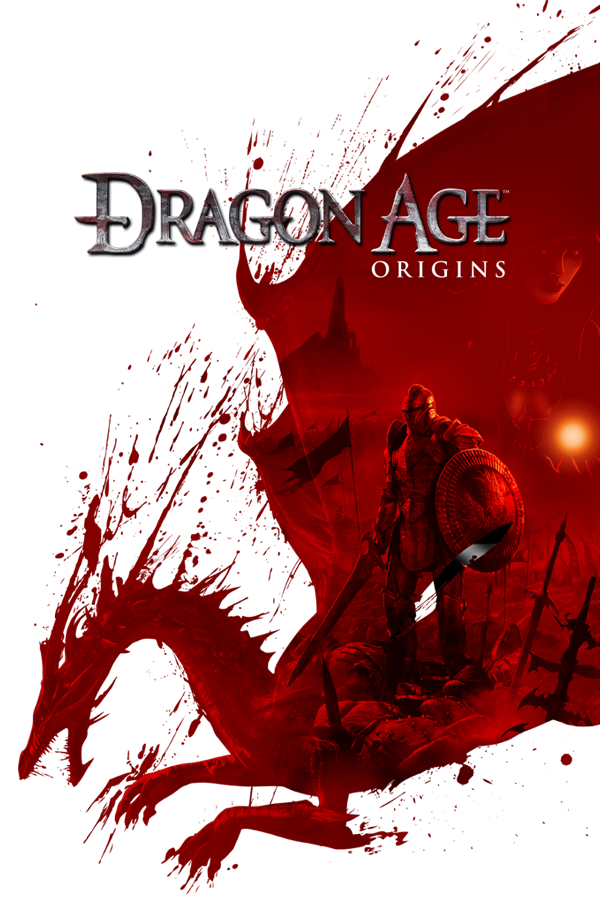
Dragon Age: Origins
OriginXbox 360
TechnologyStatic recompilation (native C/C++)
Available forWindows
View official projectAbout the project
Dragon Age: Origins conocido popularmente como Dragon Age es un videojuego de rol desarrollado por BioWare y publicado en noviembre de 2009 para Microsoft Windows (PC) y las videoconsolas PlayStation 3 y Xbox 360.
Official project information
Dragon Age: Origins — Recompiled
A static recompilation of the Xbox 360 version of Dragon Age: Origins into a native x86-64 Windows program, with a Direct3D 12 renderer based on Xenia's. It adds:
- rendering at up to 4K (and higher), with FSR 1 / CAS scaling of the whole image
- temporal upscaling and anti-aliasing with AMD FSR 4 (RDNA 4), FSR 3.1, Intel XeSS-SR or NVIDIA DLSS 4.5 (RTX GPUs, experimental), using motion vectors generated for the game's 3D scenes, which also drive optional motion blur (of the camera, characters and objects), and optional FSR 3.1 frame generation (a frame between each two, for a display at twice the frame rate; only real frames are shown on one that can't keep up)
- depth of field in conversations (and, it seems, cutscenes), from the scene's depth, with temporal upscaling: the people nearest the camera sharp, the scene behind them blurred, as a film camera's lens does; the game's own (the console's), lighter blur can be turned off, leaving only this one
- SMAA anti-aliasing, an option without temporal upscaling in place of the game's 2xMSAA (the default): faster (the scene is drawn once, single-sampled), edges about as smooth
- HDR output: on an HDR display the 3D scenes are rendered in HDR (the game's tonemapping redone without compressing its highlights), upscaled in HDR; HDR quality High keeps it 16-bit scRGB all the way to the display
- 60 fps (the original is locked to 30), or up to 240 or unlimited (experimental)
- low latency with AMD Radeon Anti-Lag 2 (AMD GPUs) or NVIDIA Reflex (NVIDIA GPUs, experimental)
- field of view settings: gameplay's, and conversations' (and, it seems, cutscenes') separately
- SDL3 input, including DualSense and other controllers
- a launcher for settings, mods (file overrides, with a converter for PC mods) and code patches
- a Graphics tab in the game's own Options menu (title and pause menus)
- a photo mode (the START menu's Photo Mode row, or L3+R3): a free camera with the world paused, field of view, roll, frames from 32:9 to 9:16 and composition grids, saving PNGs to Pictures\DAORecomp
- a cheats menu (the START menu's Cheats row, Options → Graphics → Open cheats in a game, or F7): the developers' own debug scripts, still in the game, for immortality, skill checks, gold, experience and more
- an on-screen keyboard for naming characters, usable with a gamepad
- the downloadable content (Awakening and the rest), installed from the Ultimate Edition's second disc or your own packages
- the game's text in English, Italian or Spanish (the languages on the disc; the voices are English in each), chosen in the launcher
This repository contains no game code or data. You need your own copy of the game: an ISO image of the Xbox 360 disc. The installer extracts it, translates the game's code to C++ on your computer, and builds the program.
Screenshots
<p> <img src="docs/screenshots/title-screen.webp" width="49%" alt="The game's title screen"> <img src="docs/screenshots/launcher-configure.webp" width="49%" alt="The launcher's Configure page: rendering resolution and temporal upscaling"> </p> <p> <img src="docs/screenshots/photo-mode.webp" width="49%" alt="Photo mode with a 21:9 frame"> </p>Installing
You need:
- An x86-64 PC running Windows 10/11 or Linux, with a Direct3D 12 capable GPU and a processor with AVX (most from 2011 or later). The game is built for your processor: with AVX2 (Intel from 2013, AMD from 2015) it uses those newer instructions. A copy built that way and moved to a PC without them says so when it starts; run the installer on that PC to build it for its processor.
- The disc image of Dragon Age: Origins for Xbox 360 (title ID 454108C0): the
English, Italian and Spanish edition (media ID 186A1115), which is also disc 1 of that
edition's Ultimate Edition. The installer checks that it is the supported release
(the French and German editions are other discs, not supported). The game's language
is chosen in the launcher (Configure → Advanced → Game language, or
languagein the[game]section ofuserdata/config.toml). - About 25 GB of disk space: 8 GB for the game, the rest for the tools and the build. The first build takes 30–60 minutes, depending on the CPU.
Windows
Download DAORecomp.exe from the releases and run it: it opens on its Install page,
drawn like the launcher (with the title screen from your disc once you pick it). Pick the
ISO, your downloadable content if you have it (see below), and an install folder, accept
the build tools license, and press Install.
Nothing else needs to be installed first: it downloads what it needs (including a
portable git if you have none). It builds the game into the install folder as a new
DAORecomp.exe, which then opens as the launcher: Play starts the game. It can also
add Start menu and desktop shortcuts, and add the game to Steam.
The disc image and the folder can be given to it (or the ISO dropped on it):
DAORecomp.exe --iso "D:\Games\Dragon Age Origins.iso" --dest "D:\Games\DAORecomp"
The tools and the build go into %LOCALAPPDATA%\DAORecomp-build (set DAO_WORK_DIR to
use another folder). Keep it and a newer installer only rebuilds what changed; delete it
to get the space back.
Windows may warn about DAORecomp.exe because it isn't code-signed (More info →
Run anyway).
Title updates and downloadable content
Awakening, Leliana's Song, The Darkspawn Chronicles, The Golems of Amgarrak and Witch Hunt also need the game's Title Update 6 or 7 (the other DLC work without it).
Where they are:
- Ultimate Edition: everything is on disc 2, including Title Update 6. Use its disc image as it is: there's nothing to extract.
- From a console: copy the DLC from the hard drive's
Content\0000000000000000\454108C0\00000002\folder, and the title update fromContent\0000000000000000\454108C0\000B0000\.
Each DLC is one file with a long name of letters and numbers and no extension, for
example 35F2AA65A0CDDB099F21E3280F7CE1054B5E08024 (that one is Leliana's Song). That
is normal; don't rename the files or add an extension.
When installing (easiest): in the installer, choose them under Downloadable content and title update: disc 2's image, or the files copied from a console (File...), or the folder holding them (Folder...). You can also drop them on its window. The DLC are installed first, and the title update is built into the game, so there's nothing left to do. Installing without them, the installer first shows how to add them later.
Later:
- Open the launcher, go to Downloadable Content, and drag disc 2's image, or the files, or the folder holding them, onto the window. It shows each one as it's installed.
- If you added a title update for the first time, run the installer (
DAORecomp.exefrom the release page) again on the same install folder. The game is rebuilt once for the update, which takes about as long as the first build. Going from 6 to 7 later doesn't need this.
Downloadable Content then lists what's installed and whether the game can use it.
Details:
- The title update must be the one for the English, Italian and Spanish disc (media ID
186A1115); on Ultimate disc 2 that is
ESI\tu00000001_00000000. The copies for the French and German editions are passed over. 7, the last update, adds fixes to 6's in its data files, and replaces 6 when dropped. - Given to the installer (in its window, or
--title-update <package>on the command line, which takes the title update's package only), the title update is extracted totitle_update/in the install folder, and the game's code is translated a second time from the updated executable. The program then holds both versions and runs the updated one whiletitle_update/is there; at start,title_update/default.xexpis checked to be Title Update 6's or 7's, and anything else is passed over for the disc's version. - DLC are extracted to
userdata/content/454108C0/00000002/, where the game finds them. Only packages in the read-only format Xbox Live delivers them in (LIVE/PIRS) are read; the files you drop are left as they are.
Linux (or from the source on Windows)
Install Python 3.10+ with Tkinter, git and a C++ standard library (Debian/Ubuntu:
sudo apt install build-essential python3-tk git; Fedora:
sudo dnf install gcc-c++ python3-tkinter git; Arch: sudo pacman -S base-devel tk git). Then:
git clone <this repository> DAORecomp
cd DAORecomp
python3 install.py
or python3 install.py --iso "/path/to/Dragon Age Origins.iso" --dest ~/Games/DAORecomp.
Here the tools and the build go into tools/ and build/ inside the checkout, and
after a git pull the installer rebuilds only what changed.
Running the installer again resumes an interrupted install.
Updating
The launcher looks for a newer release when it opens and, if there is one, shows an
Update item with the release notes. It downloads the new release's DAORecomp.exe
into update/ in the install folder, checks it against the SHA-256 GitHub lists for it,
and runs it on the same folder; it rebuilds only what changed (the disc image isn't
needed again) and keeps your saves, settings and mods. The checksum catches a damaged
or altered download; like the release itself, it comes from this GitHub repository.
There are two update channels, chosen in Configure → Advanced (or with
update_channel = "release" or "dev" in [launcher]):
- Release (the default): releases only (
vX.Y.Z; while the version is 0.x they're marked pre-release on GitHub, and offered all the same). - Dev: dev releases too (
vX.Y.Z-dev.N): test builds published between releases, for trying what's next early. They can have bugs. An install made from a dev release starts on this channel.
The check asks api.github.com/repos/96dot/Dragon-Age-Origins-Recomp/releases for the
list of releases; the request carries only the program's version. Launchers up to
v0.10.0-dev.5 don't see releases since the repository was renamed (from DAORecomp):
update those by hand once. Turn the check off in Configure → Advanced or with
check_updates = false in the [launcher] section of userdata/config.toml.
Builds from source (dev, or a changed checkout of a release or dev release) don't check.
With the launcher hidden there is no check: open it now and then (hold Shift).
To update by hand, run a newer release's DAORecomp.exe and choose the same install
folder (or give it --dest). Under Wine or Proton the launcher only links to the
release page: update the checkout (git pull, or check out the new tag) and run
python3 install.py --dest <install folder>.
What it downloads
Everything is pinned to exact versions and checked (installer/deps.py):
- Source code: Xenia's third-party libraries (and rapidjson, for the update check),
XenonRecomp, SDL 3, the AMD FidelityFX SDK (headers and the signed FSR and frame generation
DLLs), the Intel XeSS SDK (headers,
libxess.dlland its license notices; the release archive, of which only those are kept), and NVIDIA's Streamline SDK 2.14.1 (of its release archive, only its headers, its DLLs and NVIDIA's DLSS 310.9 and Reflex DLLs with their licenses are kept; DLSS Frame Generation's aren't installed yet). - LLVM/Clang 22 (or your system's LLVM 18+ if it has
clang-cl,lld-link,llvm-libandllvm-rc), CMake and Ninja, and on Windows without git, MinGit. - The Microsoft C/C++ runtime headers/libraries and the Windows SDK, fetched by xwin. These are under Microsoft's license, which you are asked to accept. No Visual Studio installation is needed.
The install folder gets the game files (game/), the program, userdata/ (settings,
saves, save backups, installed DLC, logs, the shader cache, and the Options menu it
generates), mods/, and with the title update, title_update/. Installing over an
earlier version removes the neural rendering files it installed (LmxxfNrRuntime.dll,
the kernels and shaders in neural/, DLSS5-AMD/default-config.txt and its logs, and
lmxxf's license files); files you added there stay.
When you save over a save, the version it replaces is kept in
userdata/save_backups/: one per save, the one before its latest overwrite (a save
the game crashed while writing doesn't replace it). When the old save can't be kept (the
drive is nearly full, or it can't be copied) or the new one's folder can't be made, the
save isn't overwritten at all: a message over the game says it wasn't saved, and the old
one stays. Closing the window while the game is saving waits (10 seconds at most) for the
save to be finished. To get one back, open the launcher's Save Backups: it lists them by
character, with when each backup and the save in its place were made. Restore puts
the backup back (after asking, and not while the game is running), and the save it
replaces becomes the backup, so restoring again switches back. (A <save>.new folder
in save_backups/ is a backup that couldn't be put in place; the log says why. A
<save>~current one is the save a restore set aside, put back when the list is next
read with the game closed.)
Playing
-
Windows: run
DAORecomp.exein the install folder. The launcher opens first (hold Shift while starting to show it when it is turned off). It is drawn with the title screen and menu art from your copy of the game (guiexport.erf, read at startup; none of it is shipped), falling back to plain shapes without it, and uses Windows' serif fonts (Palatino Linotype, Georgia or Times New Roman). It works with a mouse, the keyboard or any gamepads SDL knows (Xbox, DualSense, DualShock...): the d-pad or left stick moves between items, A/Cross selects, B/Circle goes back, LB/RB (L1/R1) switch Configure's tabs, the right stick scrolls, Start plays. The button hints show the buttons of the gamepad used last.--launchershows it anyway,--modsopens it on its Mods page, and--playskips it.Configure → Advanced → Add to Steam adds the game to Steam as a non-Steam game, for each Steam account on the PC, with library artwork drawn from the title screen. Steam starts it with
--play, straight into the game (for Big Picture). Steam has to be closed for that: the launcher asks first, and starts it again after. If Steam gets stuck while closing, the launcher offers to end it after 15 seconds. If Windows still can't let go of it after that, Steam won't start again until the PC is restarted. The oldshortcuts.vdfis kept beside it asshortcuts.vdf.daorecomp-backup. -
Linux: the program is a Windows executable; run it with Wine or Proton.
- Steam: Add a Non-Steam Game →
DAORecomp.exe, then in its properties force a Proton version (Proton includes vkd3d-proton for Direct3D 12). - Wine: install vkd3d-proton into the prefix (
winetricks vkd3d), then run./run.sh.
Linux support is untested so far. The program needs Wine's support for placeholder memory views (
VirtualAlloc2/MapViewOfFile3) and Direct3D 12 through vkd3d-proton. FSR 4 needs AMD's Windows driver and is unlikely to work under Proton; choose FSR 3.1 in the launcher (XeSS-SR and DLSS are untested there). - Steam: Add a Non-Steam Game →
Most graphics settings can also be changed in the game: Options → Graphics. Most apply at once; when you leave the menu, the game lists the ones that take effect the next time it starts. Turning off dynamic shadows and post-processing there (or in the launcher) makes the game faster on low-power devices such as the Steam Deck. Motion blur is off by default; Low and High cost GPU time while the scene moves. Depth of field in conversations is on by default; it costs GPU time in conversations and cutscenes only (about 0.85 ms a frame at 4K on an RX 9070 XT, by the GPU timing's "depth of field" mark). The recomp's depth of field blurs over the game's own (the console's), a lighter blur behind and in front of the people speaking. Turning off Console depth of field in conversations (on by default) leaves the recomp's alone, or, without temporal upscaling, none; it saves about 0.2 ms a frame in conversations (RX 9070 XT, at 1440p). With temporal upscaling off, anti-aliasing SMAA is faster than the game's 2xMSAA: about 20% less GPU time a frame at 720p and 15% at 4K on an RX 9070 XT (SMAA's own passes take 0.06 ms and 0.3 ms of it). Working on the finished image, it may let thin details shimmer more in motion. F11 switches between fullscreen and a window until the game is closed; changing Fullscreen in the Graphics tab saves the choice, F11 alone doesn't.
Low latency (Configure → Display → Frame rate in the launcher, or Options →
Graphics, where it applies at once) turns on AMD Radeon Anti-Lag 2 on AMD GPUs with a
current driver, or NVIDIA Reflex on NVIDIA GPUs: each frame starts as late as it can
still be on time, so the controller is read closer to when the frame is shown. It does
the most when the GPU is the limit (an unlimited frame rate, or one the GPU can't quite
reach), where frames would otherwise wait in a queue; at a frame rate the GPU reaches
easily there's little to gain. Anti-Lag 2 cost no frames in tests on an RX 9070 XT. It's off
while FSR Frame Generation is on: Anti-Lag 2 works with FSR 3's own way of showing generated
frames, not this game's, and cost frames with it (Reflex is kept off likewise). On +
Boost is Reflex's boost (more GPU clock for lower latency, at some power); on AMD GPUs
it's the same as On. On other GPUs it does nothing. userdata/xenia.log says whether
it's available and on.
Reflex and DLSS are experimental: they're built on NVIDIA's Streamline (its DLLs and
DLSS 4.5's, nvngx_dlss.dll version 310.9, which the installer downloads, next to
DAORecomp.exe) without an NVIDIA GPU to test on. Streamline only starts on an NVIDIA
GPU, and only when Low latency is on or DLSS is the temporal upscaler as the game
starts; turning low latency on from Off there otherwise takes effect at the next start,
as does choosing DLSS (the game's Graphics tab says so; if Streamline can't start at all,
userdata/xenia.log says why). DLSS uses the presets NVIDIA recommends for each mode
(K, and the second generation models M and L for Performance and Ultra Performance);
where it can't run (no RTX GPU, an upscaling ratio beyond what DLSS's modes cover, about
3x), FSR upscales instead. The game only loads Streamline's sl.interposer.dll if it's
exactly the installer's, and downloads nothing while it runs; NVIDIA's driver may use a
newer DLSS it already has.
OptiScaler can take over the temporal upscaling
(as can unofficial forks of it, such as AMD-NR). It isn't included: copy its files next to
DAORecomp.exe without replacing the amd_fidelityfx_*.dll files already there, rename
OptiScaler.dll to dxgi.dll, and keep Temporal upscaling on (not Off), since that's what
it replaces. A dxgi.dll there runs as part of the game, launcher included, every time it
starts, so only use a build you trust. AMD-NR's Neural Rendering is expensive: about 13 ms a
frame on an RX 9070 XT at resolution_scale = 2 (1440p) with 4K output, too much for 60 fps;
AmdLmxxfTierCap=720 under [DlssNr] in OptiScaler.ini halves that. If the upscaling
keeps failing through it, the game falls back to regular scaling for the session, and
userdata/xenia.log names the DLL; OptiScaler's own log says why (it may contain your user
name: check before sharing it). To remove it, delete dxgi.dll and the files and folders it
came with.
Mods go in mods/ (see mods/README.txt); the easiest way to add one is to drop its
archive, folder or files on the launcher window (archives are opened with Windows'
tar.exe, in Windows 10 1803 and later). PC mods with models, textures or archives
are marked as such and not loaded until converted (select one and press Convert); the
launcher also warns of what it finds in a mod that may not work on this version. The
first time the Mods page opens it explains this (mods_warning_seen in the
[launcher] section of userdata/config.toml records that it was read). In the game,
Options → Graphics → Manage mods closes it and opens the launcher's Mods page.
A skinned PC mesh (.msh) that replaces a game file needs its PC model (.mmh) in
the same mod: if a body mod ships only its meshes, add the original PC model, or the
conversion stops. The converter matches a model's bones by name to the game's Xbox 360
model of the same name. A problem with a skinned model or mesh stops the conversion
without changing the mod's files. A skinned model with a new name takes its numbers from
the game's nude body of its race (the hf_, hm_, ef_, em_, df_, dm_ or qm_
at the start of its name) if it has every bone of that rig. Others, such as creatures,
keep the PC's numbering and may look wrong; the converter says so. Checked in game with NBaio on human and dwarf bodies; not yet on Qunari or distant models.
PC texture packs (.dds files, such as AP Neural Enhanced Diffusion Textures on Nexus
Mods) go in texture packs/, next to game/ (in any folders inside it; the launcher's
Texture Packs page turns them on and off, and its Open the texture packs folder makes
and opens it), and aren't converted: each replaces the game's texture of the same name on the graphics card
only, so the game keeps its own small copies in the 360's 512 MB and the pack's can be up
to 16384 pixels wide (and 512 MB a file). The game matches the packs against its own
textures the first time (a second or two, in the background; textures already on screen by
then are replaced once it's done) and saves the results in
userdata/texture_pack_index.bin, so later starts only check that no file (and not the
size limit) changed. It
loads the pack's files in the background as their textures appear, so a texture may
sharpen a moment later. In the game, F9 switches between the packs' textures and the
game's own, to compare (not saved).
The launcher's Texture Packs page shows how many of each pack's files are used, and under Files not used, why the others aren't (Check again after changing the folder). The limits:
- Names: a file replaces the game's texture of the same name, from the base game's
archives only: files made for the PC version's own textures (such as the
*__palterrain palettes) and for DLC areas aren't used. It also replaces the game's copies of that texture's picture under other names (the same size, smaller or larger: the half and quarter size ones distant models use, terrain copies of props' textures, and the like: about 1,500 pairs, listed inDAORecomp/gpu/texture_copies.incbyscripts/find_texture_copies.py), loaded at the copy's scale. Textures the console version re-laid out (such as the castle rugs'*_fixedones) aren't copies, and a pack needs files of their own names for them. - Kinds: the game's colour textures (DXT1, DXT3 or DXT5 on the 360) take DXT1, DXT3, DXT5 or BC7 files, and its two-channel normal maps (DXN) take BC5 files. PC normal maps saved as DXT5 don't fit those. Uncompressed textures, cube maps, and textures the game draws into aren't replaced.
- Sizes: not smaller than the game's texture, sides in multiples of 4, at most 16384 pixels a side and 512 MB a file.
- Mods and other packs: where a mod replaces a texture, the mod's stays (the pack only matches the game's own); where two packs have a file of the same name, the one in the later folder (alphabetically) is used.
On that page, Size limit (texture_pack_max_size in the [video] section) loads larger
textures at that size, for the Steam Deck or cards with 4 GB or less, and Memory
(texture_pack_memory, in MB) caps the graphics memory they take (Automatic,
the default: half the graphics card's own, at least 256 MB). When it's full, the pack's
textures not seen for a second go back to the game's to make room, and those that still
don't fit stay the game's.
Photo mode starts from the START menu's Photo Mode row (below Achievements, which
stays greyed: there are no achievements here) or by clicking both sticks (L3+R3) while
exploring or in combat; the world
pauses and the camera flies free. The left stick moves it, the right stick turns it, the
triggers lower and raise it (LB slower, RB faster); the d-pad zooms and rolls, A takes a
photo (saved in Pictures\DAORecomp, cut to the chosen frame, without the overlay, and in
SDR when the game is in HDR), X opens the settings (field of view, roll, camera speed,
frame, grid), Y hides the overlay, BACK resets the camera, and B or START leaves. On its
own, a stick click reaches the game 80 ms late (the other may still come).
The cheats menu opens from the START menu's Cheats row or Options → Graphics → Open
cheats (paused from exploration or combat), or with F7 (the keyboard only, while the
game's window is in front), in exploration or combat;
the world pauses under it. Each cheat runs one of the scripts BioWare's developers left in
the game (the PC version's console ran them with runscript), through the game's own
script engine:
| Cheat | Script | What it does |
|---|---|---|
| Immortal Party | pc_immortal, as each party member | the party still takes damage but can't die (A again makes those it made immortal mortal) |
| Win Every Skill Check | zz_override_skills | persuasion, intimidation and the other skill checks in conversations always succeed |
| Kill Nearby Enemies | killallhostiles | kills up to 30 enemies the party leader can see, even those the story keeps alive (some fights may not end as they should) |
| Add Gold | zz_money | 1, 10, 100 or 1,000 gold (left and right) |
| Add Experience | addxp | 1,000, 5,000, 20,000 or 100,000 experience for the party |
| Strengthen Party | zz_supercrit, for each party member | health and mana 1,000, strength and dexterity 50; permanent |
They change the save like anything else in the game: back it up first (the launcher's Save Backups) if you may want it as it was. B or START closes the menu.
Shaders are compiled the first time something is drawn, and that draw is skipped
until then, so new places can show objects popping in for a moment. Compiled shaders
are kept in userdata/shader_cache/ and compiled again in the background at every
start, so this happens once per place.
Developing
CONTRIBUTING.md is the map: how the code is laid out, how changes are tested, and the traps found so far. The build details are below.
CMakeLists.txtbuilds the runtime (DAORecomp/), Xenia's GPU/UI code (xenia/src, vendored and patched) and the recompiled game code (ppc/, generated).cmake/clang-cl-xwin.cmakeis the toolchain the installer uses on both systems.- The build expects the installer's downloads under
tools/(runpython install.pyonce, or its--prepare-onlystep): among them the FidelityFX SDK andtools/XeSS-SDK(installer/toolchain.py'sensure_xess) andtools/Streamline-SDK(ensure_streamline), whose DLLs are copied next to the exe. scripts/build_setup_exe.pybuildsdist/DAORecomp.exe, what players download: the launcher alone (-DDAO_LAUNCHER_ONLY=ON) with the installer appended to it, which it unpacks to run. The installer isscripts/build_installer_engine.py's folder: python.org's embeddable Python (signed by the Python Software Foundation; the PyInstaller exe it replaced was deleted by antivirus as a false positive) andinstaller.pyz, the files tracked by git with truststore. The Windows installer workflow builds the folder and the exe, and publishesDAORecomp.exealso asDAORecomp-Installer.exe, the name launchers up to v0.5.1 update with.config/DAO.tomlandconfig/DAO_switch_tables.tomltell XenonRecomp where the game's functions and jump tables are;scripts/patch_recompiler.pyadds the PowerPC instructions XenonRecomp lacked.- Title Update 6 is a second build of the game in the same program:
config/DAO_tu6.tomlandconfig/DAO_tu6_switch_tables.tomldescribe it,scripts/recomp.cmd tu6translates it intoppc_tu6/(built when that folder exists), andscripts/prefix_symbols.pygives its functions names of their own (tu6_sub_...). Title Update 7 runs on the same code: its code differs from 6's only in a version number (set byDAORecomp/kernel/title_update_version.cpp) and a global that moved, so either's patch can be translated; the rest of 7 is data files. The runtime picks the build at start (DAORecomp/kernel/game_build.h); code hooks are given both builds' functions withGAME_HOOK(one build's withGAME_HOOK_ONE), and addresses both builds' withGameAddress.scripts/match_build.pyfinds a disc function's counterpart in the updated executable, and the analysis scripts takeDAO_VARIANT=tu6(ortu7).scripts/check_tu7.pychecks that 7 still runs on 6's build after a change. scripts/stfs.pylists and extracts Xbox 360 packages (info/extract); the installer uses it.DAORecomp/content/stfs.cppis the same reader for the launcher (which has no Python): keep the two in step.scripts/test_stfs.pytests both on packages it makes (passbuild/DAORecomp/DAORecomp.exefor the C++ one; CI runs the Python one), andscripts/check_constants.pychecks that the IDs, the title updates' hashes and the other valuesinstaller/deps.pyshares with the program match every copy of them in it.scripts/also has the development tools used to analyse the game and build the shaders (build_xenia_shaders.pyneeds FXC from the Windows SDK and xenia-canary's FidelityFX-CAS/FSR submodules; the compiled shaders are committed).scripts/make_icon.pydraws the program's icon (DAORecomp/res/daorecomp.ico, original art); it needs Pillow, and the .ico is committed, so it's only run to change the icon.- The in-game Graphics tab and the START menu's Photo Mode and Cheats rows are ActionScript 2
(
DAORecomp/ui/graphics_tab.as,DAORecomp/ui/pause_menu.as), whichscripts/as2c.pycompiles toDAORecomp/ui/graphics_tab_as.handDAORecomp/ui/pause_menu_as.h; runpython scripts/as2c.py DAORecomp/ui/graphics_tab.as DAORecomp/ui/graphics_tab_as.h kGraphicsTabScript(or... pause_menu.as ... pause_menu_as.h kPauseMenuScript) after changing one (with--checkat the end it only checks the header, as CI does). At start the runtime adds the scripts to the player's ownoptionsmenu.gfxandmainmenu.gfx(DAORecomp/ui/menu_movies.cpp) and serves the results fromuserdata/generated/. scripts/check_include_case.pyfinds#includes whose case differs from the file on disk, which only breaks builds on Linux.scripts/find_texture_copies.py <game folder>writesDAORecomp/gpu/texture_copies.inc, the game's textures that are copies of another's picture (for texture packs), by comparing the base game's.xdspictures. It needs the game's files, NumPy and Pillow, so CI doesn't run it: run it again after changing how it compares.DAO_CONSOLE=1shows the log (userdata/dao.log) as it's written, in the console the game was started from or a new one. The game has no console of its own, but output redirected to a file or a pipe gets the log without this. Closing a console it opened ends the game.- Diagnostics, set as environment variables (results in
userdata/xenia.log):DAO_GPU_TIMING=1: GPU time per section of a frame and pipeline statistics per kind of draw and per shader pair, every 300 frames (GTlines; slows rendering).DAO_DRED=1: when the GPU device is lost, the operations it was running and the memory it faulted on (Direct3D 12 DRED).DAO_LAUNCHER_SCREENSHOTS=<folder>: saves each launcher view (the title screen, the four Configure tabs, Mods: its list, even before the first-open notice was read, Texture Packs, Save Backups, Downloadable Content) aslauncher_0.bmptolauncher_8.bmp, and the Update page aslauncher_9.bmpwhen the update check finds a release, then quits.DAO_LAUNCHER_DROP=<path>|<path>...: withDAO_LAUNCHER_SCREENSHOTS, adds those as if dropped on the window (tests adding mods and installing packages, and in setup its disc image and DLC fields).DAO_LAUNCHER_PAD=<steps>: withDAO_LAUNCHER_SCREENSHOTS, a virtual DualSense follows these steps (separated by spaces), 12 frames each, instead of the views' screenshots, then quits: a button pressed (a b x y lb rb start up down left right) or the left stick pushed (ls-up,ls-down,ls-left,ls-right) for 3 frames, the right stick held for 11 (rs-up,rs-down),wait, orshot(saved aslauncher_pad_0.bmpand on); an unknown step is logged and passed over. It is the only gamepad then, and presses even with the window in the background.DAO_BUILD=disc: runs the disc's build even when a title update is installed.DAO_EXTRACT_PACKAGE=<package>|<new folder>: extracts an Xbox 360 package as the launcher does, prints the outcome and quits (used byscripts/test_stfs.py).DAO_CONVERT_MOD=<mod folder>: converts that PC mod as the launcher's Convert does, logs the outcome touserdata/dao.logand quits (tests the converter).DAO_TEST_KEYBOARD=<seconds>: shows the on-screen keyboard that long after the game starts and logs what was entered (tests it without creating a character).DAO_PHOTO_DIR=<folder>: photo mode saves its photos there instead ofPictures\DAORecomp(scripts/test/inputs/photo_mode.txt).DAO_STREAMLINE_ANY_GPU=1: with Low latency on, starts NVIDIA's Streamline on any GPU, not only NVIDIA's (Reflex's sleep does nothing there, but the rest runs: its proxies, the swap chain through them, its markers; Anti-Lag 2 is then not used), to test it without one.
Never commit game files or anything generated from them (game/, ppc/, ppc_tu6/,
analysis/, title_update/, dlc/, built executables); .gitignore excludes them.
License
MIT (see LICENSE), except xenia/, which is Xenia's code under its BSD license
(xenia/LICENSE). The downloaded dependencies keep their own licenses; the FidelityFX
license is copied next to its DLLs, and Intel's XeSS license and third-party notices
next to libxess.dll (intel_xess_license.txt, intel_xess_third_party_programs.txt).
thirdparty/antilag2 is
AMD's Anti-Lag 2 SDK header, under its MIT license (installed as
amd_antilag2_license.txt). thirdparty/smaa is SMAA's shader and lookup textures
(Jorge Jimenez et al.), under its MIT license (installed as smaa_license.txt).
NVIDIA's Streamline (MIT) and its Reflex and DLSS DLLs (under NVIDIA's license terms)
are downloaded by the installer, and their licenses installed next to them
(nvidia_streamline_license.txt, nvidia_reflex_license.txt, nvidia_dlss_license.txt).
Dragon Age is a trademark of Electronic Arts; this project is not affiliated with EA,
BioWare or Microsoft.