
Shadows of the Empire Recompiled
Star Wars: Shadows of the Empire
OriginNintendo 64
TechnologyStatic recompilation (native C/C++)
Available forWindows
View official projectAbout the project
Star Wars: Shadows of the Empire es un videojuego de disparos en tercera persona desarrollado en 1996, por LucasArts. Fue uno de los primeros juegos disponibles para la consola Nintendo 64, con más de un millón de copias vendidas en 1997. Una versión para la plataforma Windows 95 fue lanzada un año más tarde. El juego fue relanzado para sistemas Windows el 3 de mayo de 2016, a través del servicio de venta de videojuegos GOG.com. Este relanzamiento permite que el videojuego se reproduzca correctamente en sistemas Windows de 64 bits.
2 versions of Star Wars: Shadows of the Empire
You're viewing: Shadows of the Empire Recompiled
Official project information
Shadows of the Empire: Recompiled
Report bugs / request features
Download 0.9.7 for Windows · Release notes
Experimental Linux x86-64 download · Linux setup and known issues
This repository contains a playable Windows static recompilation of the Nintendo 64 version of Star Wars: Shadows of the Empire using N64Recomp.
License and ports
Original project code is available under the MIT License. Ports to other platforms, including iPhone, are welcome. Third-party licenses still apply; combined builds using N64ModernRuntime must comply with its GPL requirements. Game files and replacement artwork are separately owned. See licensing details.
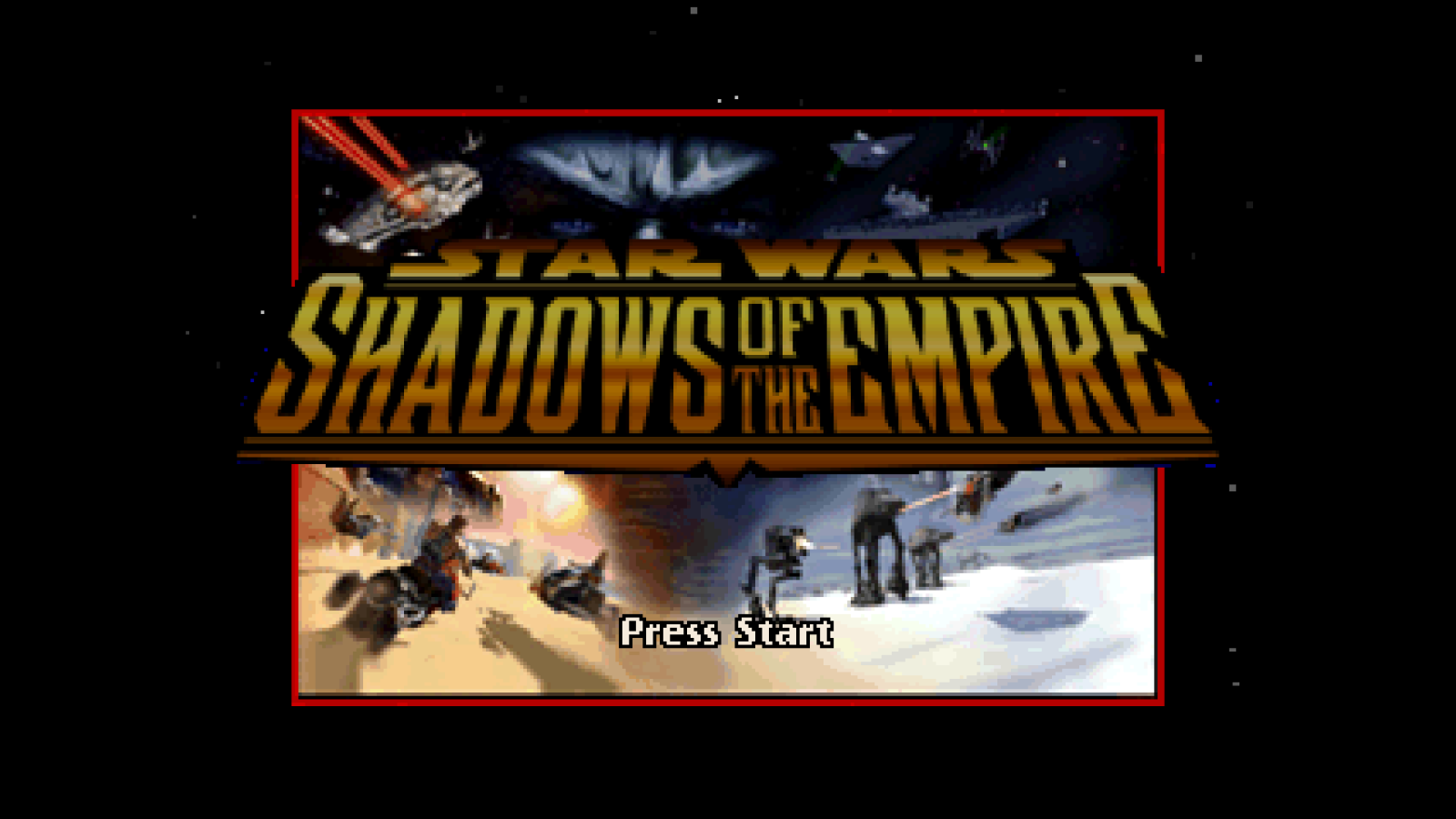
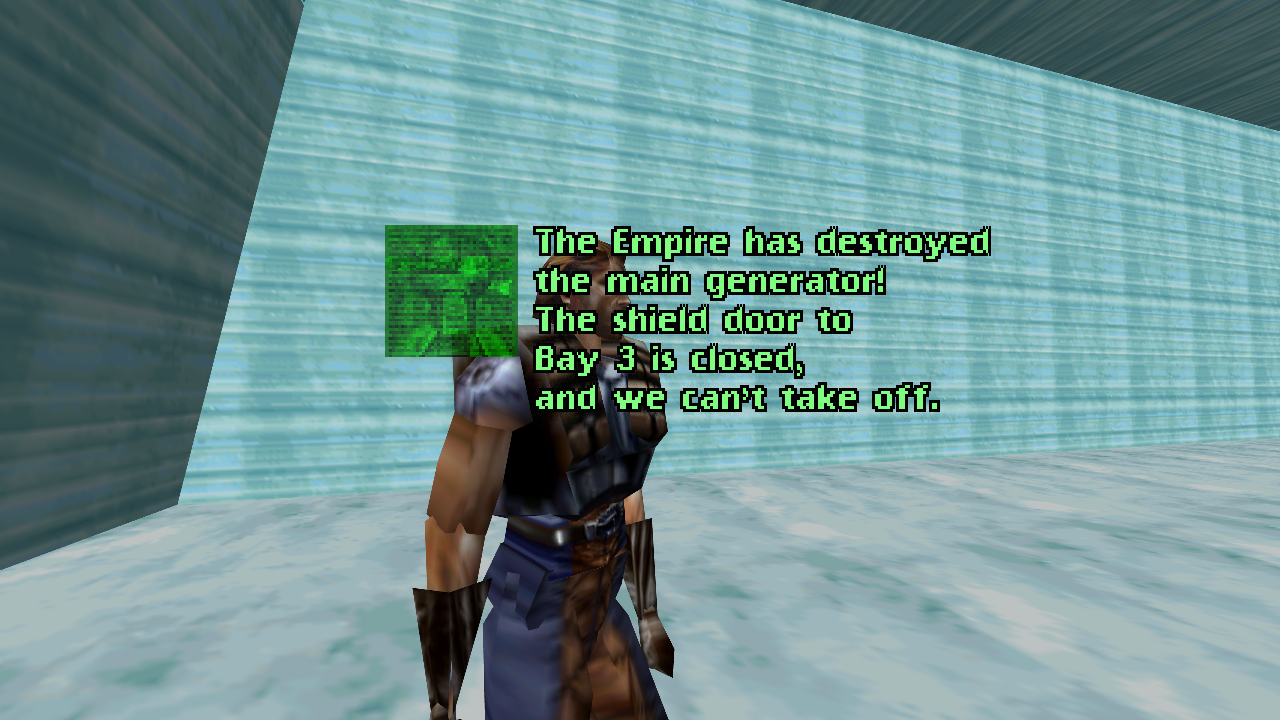
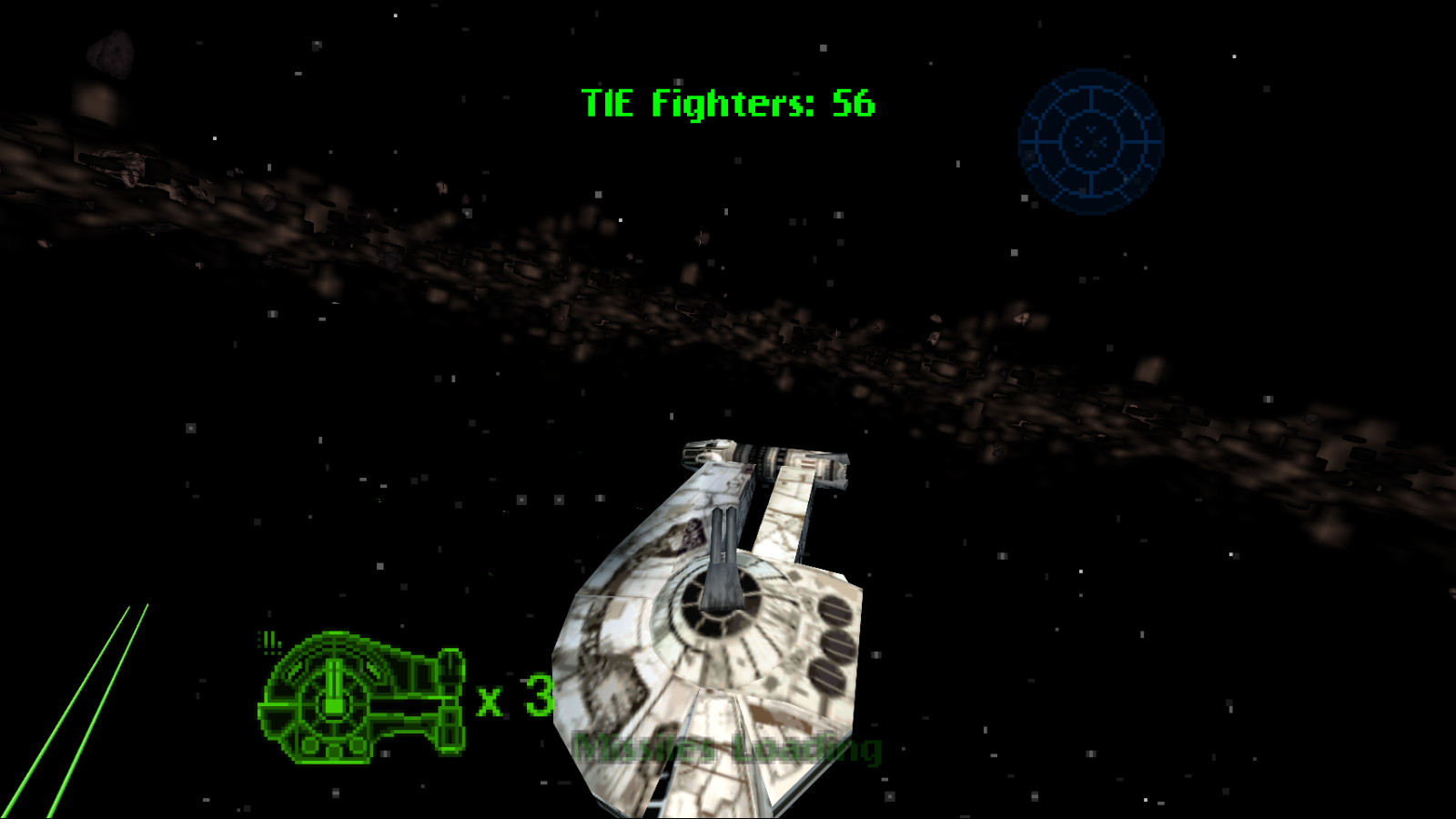
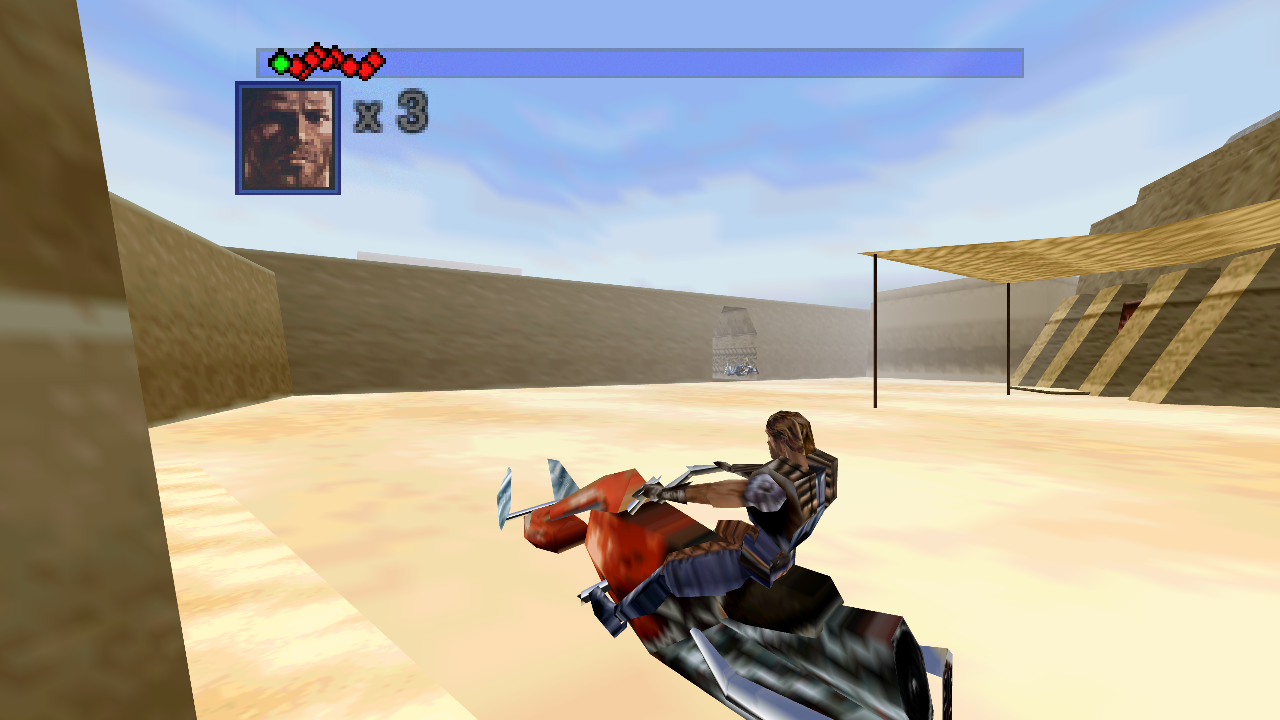
Screenshots
| Main menu | On-foot level |
|---|---|
 |  |
| Space level | Speeder bike level |
|---|---|
 |  |
Target
- Region: USA
- Retail revision: 1.2
- ROM byte order: big-endian (
.z64); byteswapped.v64/.n64dumps are converted automatically - Internal ROM name:
Shadow of the Empire - Accepted ROM SHA-256, either of:
e7085e013123537f34e0edec8801318016da4dbac424172d6dc5f3b67d98642c(No-IntroStar Wars - Shadows of the Empire (USA) (Rev 2), CRC32E8727549- the normal cartridge dump)2802bf4135842f7c8d254349ed7ac2641f6d7ff45e9d2d01304e1455706dd103(a widely mirrored pack copy; differs from the dump above only at ROM offset0x3B7B6E, which falls outside every recompiled code section, the texture pool and all 32 packed segments, so it runs identically)
No game ROMs or extracted copyrighted assets belong in version control. A legally obtained matching ROM is required locally to build and run the port.
Modern blaster convergence and optional INI magnetism are documented in Modern aiming.
High-quality OGG music
You can replace the N64 music with higher-quality recordings from your own PC soundtrack. Music files are optional and are not included in the download.
- Close the game and create
Sdata/MUSICbesideShadows of the Empire.exe. - Put your soundtrack's Ogg Vorbis files in that folder. The supported
numbered set uses
Track02.oggthroughTrack14.ogg. Keep those filenames; changing a WAV or MP3 extension to.oggdoes not convert the audio. - Restart the game. Available replacements load automatically; no rebuild, extra player, or separate audio DLL is needed. The in-game Music setting controls their volume.
For example:
Shadows of the Empire.exe
Sdata/
  MUSIC/
    Track02.ogg   (title theme)
    Track03.ogg   (Battle of Hoth)
    Track04.ogg   (Echo Base and Imperial Freighter)
    ...
    Track14.ogg   (Skyhook battle)
If you are ripping or converting your own soundtrack, match the files to the
cue/filename table rather than assuming
the CD track order is the same. The built-in mapping works without a map file;
custom filenames can be assigned in Sdata/MUSIC/n64_music_map.tsv as described
in the music guide. Avoid copying an old map from an
unrelated music archive, since it may assign the wrong tracks.
A separate main_menu.ogg can replace the main-menu cue. Missing or unreadable
replacements fall back to the original N64 music, and sound effects stay intact.
Leebo's PC voices
The current build maps 31 distinct Leebo communicator messages to PC recordings and starts
them when their text appears. Copy ILB*.WAV from the Sdata folder in your
own PC installation into Sdata beside Shadows of the Empire.exe, then
restart. The path should be Sdata/ILB01.WAV; original PCM WAV files need no
conversion. These optional recordings are not bundled. See the
installation guide.
PC SAN cutscenes
Loose PC .SAN movie files can sit at the root of the runnable Sdata
folder, for example SotE_Recompiled/Sdata/L01INTRO.SAN. They are local
user-provided assets and are not included in git or release archives. The
portable packager also merges root-level Sdata/*.SAN from a local source
tree into the play folder while intentionally ignoring Sdata/MOVIES.
These files use LucasArts SMUSH: ScummVM's GRiME decoder identifies this
SotE set as the ANIM/AHDR path, with FOBJ video chunks using codec 47
or 48 and IACT audio chunks. The runtime reads the original SAN files directly
using the included LGPL-2.1 sandec shared library. It decodes video and stereo
audio during playback into bounded memory buffers; no preprocessing, FFmpeg
installation, or decoded disk cache is required.
Put your PC game's root-level .SAN files in SotE_Recompiled/Sdata.
Cutscenes pause gameplay and can be skipped with Start, A, B, Escape, Enter,
or Space. SOTE_SAN_PREVIEW=<movie>.SAN selects a movie for direct-playback testing.
The original SAN files must remain present. Historical SAN_CACHE folders are
not read by this player and are unnecessary.
Texture packs
The Windows release includes the updated interceptor427 HD texture pack and additional AI upscales. Both load automatically; textures without a replacement use their original N64 artwork. To switch to original textures, open Options → Graphics → HD Textures, choose Off, and select Apply. You can switch back to On during play without restarting. The choice is saved; loading the packs can briefly pause the game. With no pack installed, the game uses the original artwork either way.
Replacement packs support higher-resolution PNG artwork, transparency and runtime source-slot matching. See the authoring and installation guide or developer workflow and validation.
Before / after texture comparison
Hoth with stock textures and the experimental 4× RealisticRescaler texture pack. These renderer captures use the same scripted route, capture point and graphics settings; separate runs can have small differences in scene timing. Click either image to inspect the full-resolution capture.
| Before: stock textures | After: experimental 4× texture pack |
|---|---|
 |  |
Snowspeeder detail, with both crops enlarged 2× using nearest-neighbor scaling and no sharpening:
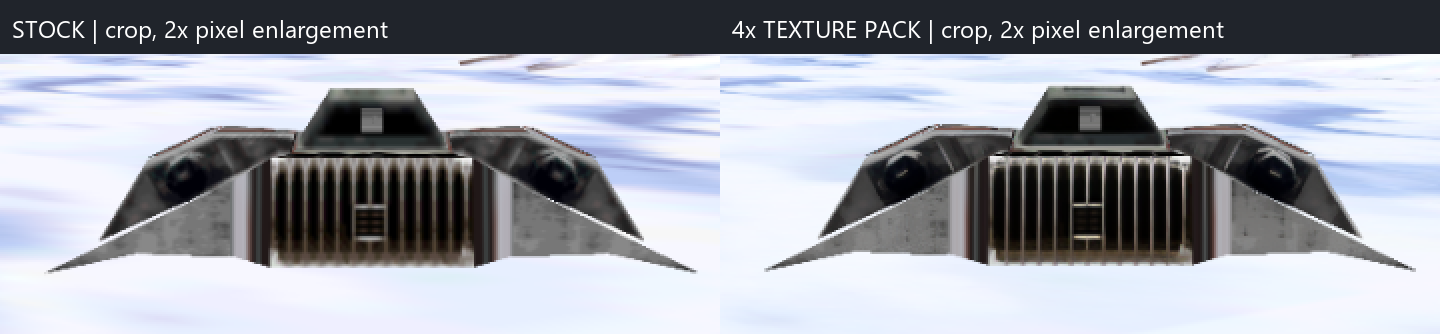
The enhanced pack shown here is a proof of concept. The 0.9.2 download includes stock source textures and authoring tools; this experimental enhanced artwork is not bundled. You can use the included sources to build your own HD pack.
Status
The 0.9.7 release is playable on Windows. Graphics, music and sound effects, keyboard and controller input, rumble, EEPROM saves, widescreen rendering, MSAA, and the in-game graphics/options hooks are connected. Automated crash testing navigates the in-game Change Level menu and has exercised all ten levels. Longer input-driven runs cover on-foot, speeder bike, spacecraft, turret, and jetpack gameplay paths.
The 0.9.7 release contains the executable, required runtime DLLs, documentation,
license notices and both active texture packs. Your settings are created when
you run the game. It does not include a ROM, main.bin, saves, PC music, voices
or movies.
At runtime, the executable validates the user's local USA v1.2 big-endian ROM
and reconstructs the retail executable image in memory.
The renderer includes the game's F3DBETA microcode identification and perspective-normalization behavior. It also avoids RT64's early-present path, which caused alternating black frames and severe flicker in this game. Consecutive synchronized offscreen captures of menus and Hoth gameplay no longer contain those black frames.
The retail loader also restores libultra's 46.875 MHz CPU-counter clock rate.
The generic runtime replacement for osInitialize does not perform that
guest-memory write; leaving the ROM's 62.5 MHz initializer unchanged made
SOTE's audio scheduler run 25 percent late and repeatedly underrun.
Gameplay is paced at one update per 60 Hz VI while the N64 VI and host presentation remain at 60 Hz. Without this guard, HLE graphics tasks finish much faster than the original RSP/RDP work and let the main loop run about 120 gameplay updates per second. That made movement, collision, and mission timers several times too fast even though presentation itself was properly synchronized.
Requirements
Vulkan is the default graphics API. The first launch of the updated build switches existing graphics API settings to Vulkan once. Later explicit API choices are respected; Automatic selects Vulkan. Other graphics settings are preserved.
For the release zip:
- Windows 10 or 11
- A legally obtained ROM matching the SHA-256 above
For building from source:
- Windows 10 or 11
- Visual Studio 2022 with Desktop development with C++
- CMake and Git on
PATH - Python 3
- A legally obtained ROM matching the SHA-256 above
Install the Python dependencies into the repository:
python -m pip install --target .tools/python -r tools/requirements.txt
Build
Place the ROM in the repository root with this name:
Star Wars - Shadows of the Empire (U) (V1.2) [!].z64
Then run:
powershell -ExecutionPolicy Bypass -File .\build.ps1
Use -RomPath C:\path\to\rom.z64 for a ROM stored elsewhere. The first build
extracts and recompiles the game. Later builds reuse those generated sources;
pass -Regenerate to recreate them or -Clean to recreate both CMake build
trees.
Run
For the release zip, extract the archive and place the matching ROM next to
Shadows of the Empire.exe with either of these names:
sote.us.v1.2.z64
Star Wars - Shadows of the Empire (U) (V1.2) [!].z64
For local builds, the build script creates the same self-contained play folder:
SotE_Recompiled\
Double-click:
SotE_Recompiled\Shadows of the Empire.exe
The executable resolves the ROM, retail image, DLLs, and saves from its own directory, so it does not depend on the current working directory or the repository layout. The portable folder can be moved as a unit. Saves are written under:
SotE_Recompiled\saves\sote.us.v1.2.bin
Normal double-click launches also keep diagnostics for the most recent run:
SotE_Recompiled\logs\sote-latest.log
SotE_Recompiled\logs\sote-latest-errors.log
The first file includes bike-stage timers, lives, and mission-failure transitions. The second captures runtime errors and native crash stacks. Both files are replaced on the next launch instead of accumulating indefinitely.
Normal launches use Direct3D and sound. --muted suppresses the host audio
device while leaving guest audio generation active. Automation uses both
--headless-smoke and --muted, so it opens neither a Direct3D window nor a
sound device.
Graphics
Normal launches default to a resizable 1280x720 widescreen window, automatic integer-scaled internal resolution, and 4x MSAA. Maximizing the window or moving it to a higher-resolution display automatically raises the internal rendering resolution. RT64 expands supported 3D projections to the window's aspect ratio while retaining the game's original 2D framebuffer behavior.
Graphics configuration is part of the original game UI. Open
Options -> Graphics to select:
- An actual output resolution supported by the current display
- Native, 2x, 4x, or 8x render scale, or automatic Scale to Fit
- Original 4:3 or Widescreen presentation
- Off, 2x, 4x, or 8x MSAA
- Windowed or Borderless display mode
Changes are staged until Apply is selected. Reset restores 1280x720,
Scale to Fit, Widescreen, 4x MSAA, and Windowed mode. Renderer options are
saved in SotE_Recompiled\rt64.json; output resolution and display mode are
saved in SotE_Recompiled\sote_options.json. Both files are created
automatically.
Pressing F11 or Alt+Enter also toggles borderless mode and keeps the
in-game setting synchronized.
The bundled RT64 revision provides multisample antialiasing rather than FXAA. The port defaults to 4x MSAA because it smooths polygon edges without applying a full-screen blur to HUD text and textures.
On an Xbox controller, Y is a digital alias for N64 C-left. In the jetpack levels, press Y to toggle the jetpack and hold A for thrust. The right-stick left direction continues to provide the original C-left input as well.
Automated crash smoke
Run the four mode-focused tests:
powershell -ExecutionPolicy Bypass -File .\tools\smoke_levels.ps1
Run every Change Level entry:
powershell -ExecutionPolicy Bypass -File .\tools\smoke_levels.ps1 -AllLevels
Each level test spends three minutes in its gameplay observation window by
default. It records life loss, result transitions, and game-over state along
with periodic level heartbeats. Use -DurationMinutes to request a different
duration. Unless -Passive is supplied, the harness rotates through all four
analog directions while holding fire and pulses A, B, R, L, and each C button.
The combined-input test fails if any of those action classes is absent from
the captured runtime log. Pass -NoRefillLives to exercise natural life
depletion instead of the default long-smoke refill. Add
-ExpectNaturalGameOver to require the exact four-death sequence
3→2→1→0→-1 and a result-4 return to the level menu.
These tests use the headless renderer so they can run without taking window
focus. They also pass --muted, while still exercising game audio tasks,
overlay code, and display-list submission paths; rendered offscreen capture
remains a separate validation step. Every run starts from an isolated copy of
the known-good Change Level save under build\diagnostics and does not modify
the normal save.
Controls
An SDL-compatible controller uses the expected N64 layout:
- Left stick: N64 analog stick
- A / B: N64 A / B
- Left trigger: Z
- Left and right shoulder buttons: L and R
- Right stick: C buttons
- D-pad and Start: N64 D-pad and Start
Modern on-foot keyboard defaults:
WASD: analog stickZor Space: AX: BC: ZQ/E: L / R- Arrow keys: D-pad
IJKL: C buttons- Enter: Start
Classic on-foot keyboard and mouse defaults follow the installed PC release's
first built-in control set: arrow keys or numpad 8/2/4/6 move, IJKL controls
the camera, X/Mouse 1 fires, Z/Mouse 2 jumps, Space aims, A strafes or
activates, C ducks, Q toggles the jetpack, W changes weapon, and Tab
changes camera position. Enter or F1 pauses; Escape remains the recovery
pause key.
Classic speeder-bike keyboard and mouse defaults also follow the PC release:
arrows or numpad 8/2/4/6 steer, Z/Mouse 1 throttles, A/Mouse 2 reverses
or brakes, S rams left, D rams right, and Tab changes the camera.
Classic snowspeeder uses arrows or numpad 8/2/4/6 to steer, Z/Mouse 2
for thrust, X/Mouse 1 to fire, Space or C for the harpoon, and A for
brakes, matching the first PC built-in set.
Classic Outrider uses arrows or numpad 8/2/4/6 to steer, Z/Mouse 2 to
accelerate and roll, A to decelerate, X/Mouse 1 to fire, Space or C
for missiles, and Q to roll.
Classic turret uses arrows or numpad 8/2/4/6 to aim, X/Mouse 1 to fire,
and C/Mouse 2 for missiles. The additional missile key is Space in
Asteroid Field and Z in Skyhook; the Controls screen shows both defaults.
Physical keyboard and controller input is accepted only while the game window has focus. This prevents normal desktop typing from steering an unattended game.
Control scheme
The injected Options entry cycles between Graphics and Controls with Left
and Right. The Controls submenu offers a single player-facing choice:
Classic- PC-style keyboard/mouse controls in all five gameplay sections, with the native N64 controller mapping. The PC joystick comparison is in progress.Modern- controller-focused aiming, movement, and vehicle tuning. On foot, LS moves and strafes while RS continuously turns and aims. There is no LT aim mode. A jumps, RT fires, X opens doors, Y toggles the jetpack, B crouches, and LB/RB cycles weapons. Modern uses a right-shoulder camera looking along the weapon direction, with native camera collision checks. Stick release stops turning and holds vertical aim. Speeder-bike stages use right trigger for throttle, left trigger for brake, left stick steering, and LB/RB for the native left/right ram actions. The bike has no blaster fire action. Bike steering uses a progressive curve, can lose sensitivity as throttle rises, and is lightly stabilized. A filtered throttle/brake axis controls native camera framing.
Highlight Apply to persist the choice to sote_controls.json next to the
executable.
Modern-control tuning is kept in CONTROLS_MODERN.INI next to the
executable. The file is written with defaults on first run and re-read when it
changes on disk. Each setting has comments describing its valid range and what
higher or lower values do. Tunables include movement deadzone and sensitivity,
aim deadzone and sensitivity, trigger deadzone and sensitivity, optional
look-forward snap back, and speeder-bike steering curve, high-speed falloff,
minimum steering scale, stabilization, and camera smoothing. The legacy
bike_fire_button key is reserved and has no effect in the bike stage.
The [OnFoot] settings are independent of the older General/Bike tuning:
on_foot_movement_deadzone and on_foot_aim_deadzone ship at 0.18 in the 0.9.2
INI (the fallback when keys are absent is 0.12),
on_foot_aim_curve to 1.7, on_foot_yaw_speed to 180 degrees/second, and
on_foot_pitch_speed to 90 degrees/second. on_foot_invert_y reverses vertical
look. Larger aim exponents give finer center control; 1.0 is linear. Both
sticks use circular deadzones, preserving shallow diagonals. Existing INIs
without these keys use the defaults; add the [OnFoot] block from
config/CONTROLS_MODERN.INI to expose them. Classic uses the game's native
movement and camera mechanics with the PC-style on-foot keyboard layout above.
Beta testers are encouraged to tune CONTROLS_MODERN.INI for real controllers
and submit the best-feeling setups with controller model details.
Control-scheme harness
The scheme selection, the CONTROLS_MODERN.INI reader, and the Modern input
math run outside the recompiled guest, so they are covered by a host-side
harness that needs neither a ROM nor a graphics device:
.\build\runtime\Release\controls_harness.exe
.\build\runtime\Release\modern_controls_harness.exe
The second harness checks radial response, pitch timing, guest movement/aim
hooks, native action bindings, and Classic/death/disconnect isolation. For
process-local gameplay diagnostics, SOTE_TEST_MODERN_INPUT=1 exercises a
repeating sequence of fine/full turns, pitch, and diagonal movement;
SOTE_TRACE_MODERN_CONTROLS=1 logs the requested and native output angles.
These checks do not substitute for a hands-on controller feel pass.
Repository notes
Generated game code and ROM-derived data are deliberately ignored. The
dependency changes needed by this port are kept as patch files under
patches\ and are applied automatically by build.ps1.