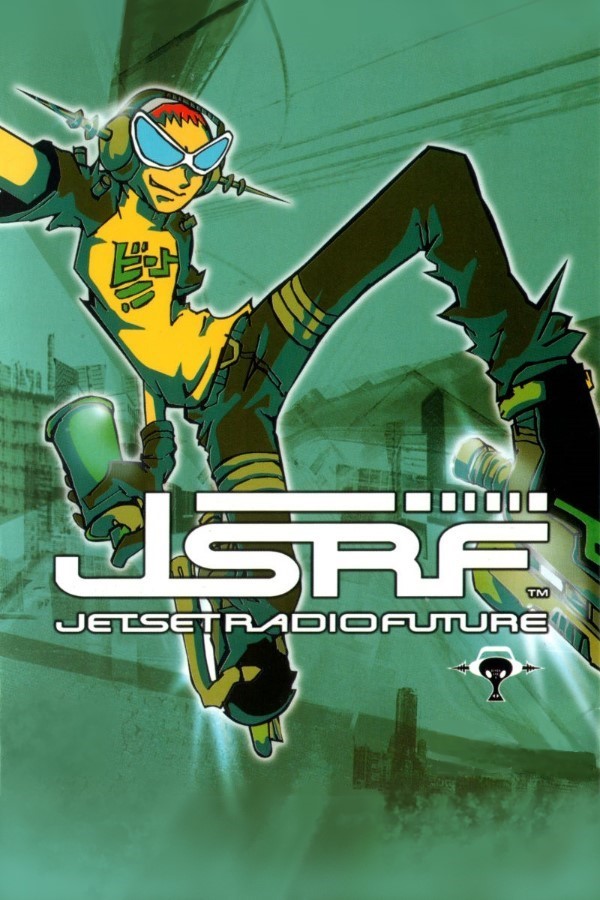
Jet Set Radio Future Unleashed
Jet Set Radio Future
OriginXbox
TechnologyNative C/C++ port (engine reimplementation)
Available forWindows, Android
View official projectAbout the project
Jet Set Radio Future es un videojuego de acción de 2002 desarrollado por Smilebit y publicado por Sega para Xbox; es una secuela del juego de Dreamcast Jet Set Radio (2000). Como una nueva versión del juego original, presenta mecánicas de juego refinadas, gráficos actualizados, entornos de mundo abierto más grandes, nuevos personajes, una trama alterada, una nueva banda sonora y un modo de juego multijugador.
2 versions of Jet Set Radio Future
You're viewing: Jet Set Radio Future Unleashed
Official project information
JSRF Unleashed
Jet Set Radio Future, running natively on Mac, Windows, Linux, Android, iPhone and iPad. Not an emulator — the game's own code, statically recompiled into C and built as a native application.
This project is about one game. It is not an Xbox emulator and it will not run other Xbox titles. Everything here — the graphics translation, the audio path, the file layout, the per-function fixes — is aimed at getting Jet Set Radio Future right. If you want to run Xbox games in general, you want xemu; if you want to port a different Xbox title, you want the toolkit this is built on.
You need your own copy of the game. The download is the engine only — no game files, no textures, no music, no video. It plays the files from a disc you own.
What it adds to the 2002 original
The same game, made for today's screens and devices:
- On your phone. Native apps for iPhone, iPad and Android, with on-screen touch controls, or any Bluetooth controller — Xbox, DualSense, Switch Pro. And natively on Mac (Apple Silicon, Metal), Windows and Linux.
- Up to 4K. The internal resolution goes from the Xbox's 640×480 up to 6× — 3840×2880, for a 4K screen — with SMAA and MSAA anti-aliasing.
- Widescreen 16:9 and ultrawide 21:9. A wider view of Tokyo-to, not a stretched one; the HUD moves out to the edges of the screen, and the boost's heat haze covers the whole picture. On iPhone, the picture can fill the screen.
- The camera on the right stick. Turn and tilt the camera freely, as in a modern game — the skater goes where you look, or, set to tracking, keeps going while you look around. Or keep the original camera.
- Smooth 60 fps. Shaders are built ahead and kept between sessions, so new places don't stutter.
- Photo mode. Hold Back (or Esc) while skating and the whole city stops — skaters, people, cars, spray cans — while the camera is yours: fly it around, hide the HUD, frame the shot. An on-screen panel shows the controls.
- Vibration, as on the console, on every platform: Xbox, PlayStation and other controllers (a DualSense or DualShock 4 over Bluetooth too), and on iPhone and Android the phone itself when you play with the on-screen controls. It can be turned off.
- A map selector. Go straight to any of the 14 maps and skate it freely, as after the story — nothing to race or chase. Explore Skyscraper District on day one.
- Further draw distance in Skyscraper District, where the towers used to pop in on the way to 99th Street.
- The brake sparks and smoke, as on the console. They come every time and follow your skates, which they don't in emulation.
- Keyboard controls on computers, by key position (WASD on QWERTY, ZQSD on AZERTY), and Game Mode in full screen on the Mac.
- Your own copy, your way. It plays from your game files or a disc image of your disc; on iPhone, updates come through AltStore.
What changed in each version is in the changelog.
Download
| Platform | Download |
|---|---|
| macOS 12 or later, Apple Silicon (M1 or later) | JSRF-Unleashed-macOS-arm64.zip |
| Linux, x86_64 (glibc 2.34 or later: Ubuntu 22.04, Debian 12, Fedora 36 and newer) | JSRF-Unleashed-linux-x86_64.tar.gz — less tested than the Mac build |
| iPhone and iPad, iOS 15 or later (iPhone XS or newer recommended) | JSRF-Unleashed-iOS.ipa — less tested on iPads |
| Windows 10 or 11, 64-bit | JSRF-Unleashed-windows-x86_64.zip — tested under Wine |
| Android 10 or later, 64-bit, Snapdragon 8 Gen 1 or newer | JSRF-Unleashed-android-arm64.apk — tested in the Android emulator |
Every version is on the Releases page; what changed is in the changelog.
Installing on macOS
- Unzip, and move JSRF Unleashed to Applications (or wherever you like).
- Open it. The app is not notarised by Apple — that needs a paid developer account — so the first time, macOS says it cannot check it. Click Done, open System Settings › Privacy & Security, find "JSRF Unleashed" was blocked and click Open Anyway. (On macOS 13 or earlier, right-click the app and choose Open instead.) This is needed once.
- It asks where your game is: pick the folder that contains
default.xbe, or a disc image (.iso), which it unpacks once by itself — nothing else to install. You can also drop either onto the app. It remembers the choice, and if the files are not the right ones (another build of the game, another game's disc, a zip), it says what they are.
Saves are kept in the game folder, in UDATA (where an Xbox keeps them), so
copy that folder to back them up, and keep it if you replace the game files.
Each run writes last-run.log into the game folder (with a few older ones in
logs/) — attach it when you report a bug.
Installing on Windows
- Unzip the archive anywhere, and keep the
enginefolder beside JSRF Unleashed.exe. - Run JSRF Unleashed.exe. It is not signed (that costs money every year), so the first time Windows may say it protected your PC: click More info, then Run anyway.
- The first time, it asks where to keep its settings, cache, logs and
unpacked disc images: in its own folder (portable — the whole folder can
then move, to another computer or onto a USB drive or SSD) or in
%LOCALAPPDATA%\JSRF Unleashed. Then where your game is: pick the folder that containsdefault.xbe, or the folder with your disc image (.iso) in it, which it offers to unpack once. It remembers the choice.
It needs graphics drivers with OpenGL 3.3, which any GPU from the last ten
years has; on a laptop with two GPUs it asks for the dedicated one (NVIDIA or
AMD). The Video menu at the top of the window sets the resolution, from
1× to 6× the Xbox's 640×480 (2× by default; 6×, 3840×2880, is for a 4K
screen; the game restarts to apply it), the anti-aliasing (SMAA, MSAA 2× to
8×, or both), the picture (4:3, 16:9, or 21:9 for an ultrawide screen) and
full screen, all of them remembered: the game starts the way it was left, in
full screen or in a window (--fullscreen and --windowed choose for one
start). The same are on
F9, F8, F10 and F11 (or Alt+Enter), which also work in full
screen, where the menu is hidden. Controls › Camera on the Right Stick
and Camera on the Right Stick (Tracking), or F7 (on, tracking, off),
choose how the right stick works (below). Maps goes straight to a map
(below); F6 shows the same list on screen.
Controllers work through SDL: Xbox, PlayStation, Switch Pro and many more.
Saves are kept in the game folder, in UDATA, as on the Mac. The
README.txt inside lists the options and where the settings and logs
(last-run.log) are kept. A portable install is a file named portable.txt
beside JSRF Unleashed.exe: --portable makes it later (settings come
along), and deleting it goes back. The Linux build has the same switch.
On a Mac, the Windows build also runs in CrossOver (a Windows 10 64-bit bottle, then Run Command… on JSRF Unleashed.exe), but the Mac build is the better choice there.
Installing on iPhone or iPad
The app is not on the App Store, so it is installed with AltStore, which
signs it with your own Apple ID. The steps below use a Mac (AltServer also
runs on Windows: see altstore.io).
SideStore and Sideloadly work
too, with the same source or the .ipa from the release.
1. Install AltStore (once)
- Download AltServer for macOS, unzip it, move AltServer to Applications and open it. It lives in the menu bar.
- Plug the iPhone into the Mac, unlock it, and tap Trust if it asks.
- In Finder, select the iPhone and tick Show this iPhone when on Wi-Fi, so AltStore can refresh apps later without the cable.
- Click the AltServer icon in the menu bar › Install AltStore › your iPhone, and sign in with your Apple ID. If it asks to install a Mail plug-in, follow its instructions.
- On the iPhone: Settings › General › VPN & Device Management › your Apple ID › Trust.
- Settings › Privacy & Security › Developer Mode (iOS 16 or later): turn it on and let the phone restart.
2. Install JSRF Unleashed
-
Open AltStore › Sources › +, and paste:
https://raw.githubusercontent.com/JuMatt/JetSetRadioFuture-Unleashed/main/altstore/source.json -
Browse › JSRF Unleashed › FREE. New versions show up there as updates.
3. Add your game
- Open JSRF Unleashed once. It creates its folder and shows where the game goes.
- Copy the game into On My iPhone › JSRF Unleashed: this folder, and
nowhere else. Copy either the disc image (
.iso) or the extracted game folder (the one withdefault.xbein it; see Your game files):- from the Mac: Finder › your iPhone › Files tab, and drag it onto JSRF Unleashed;
- on the iPhone: in the Files app, from iCloud Drive, Google Drive or wherever it is.
- Back in the app: for an
.iso, tap Unpack (once, a minute or two; it then offers to delete the image). Then the game starts.
Updates: when a new version is out, AltStore shows it in My Apps: tap Update (with AltServer reachable, as for a refresh). It installs over the app and keeps the game and your saves; deleting the app first deletes them.
Free Apple ID: the app stops opening after 7 days. Refresh it in AltStore › My Apps › Refresh All, with the Mac on the same Wi-Fi and AltServer running. A free Apple ID also allows only 3 sideloaded apps at a time, AltStore included.
In the EU, use this AltStore (AltStore Classic), not AltStore PAL: PAL only installs apps notarised by Apple.
A controller is the way to play (any one iOS supports: Xbox, PlayStation,
MFi, Backbone and the like). Without one, the app shows on-screen controls,
with Start and Back at the top. The ⚙ button has the picture (16:9, the
default; Fill the screen, the game widened to the whole of an iPhone's
screen; or the console's 4:3), the on-screen controls, the resolution
and the anti-aliasing (SMAA, MSAA, or both).
Saves are kept inside the game's folder (in
UDATA), so deleting or replacing that folder deletes them too; each run's log
is in Logs.
The game's memory map needs 4 GB of address space, which recent iPhones give an app. If an older device does not, the app says so when it starts.
Installing on Android
- Download JSRF-Unleashed-android-arm64.apk on the phone and open it. It is not on Google Play, so Android asks you to allow installing apps from your browser (or file manager): allow it, then Install.
- Open JSRF Unleashed. It shows where the game goes, and two ways to put
it there (see Your game files):
- Choose the disc image (.iso): pick your image, wherever it is; the app unpacks it once into its own folder (about 3 GB of free space);
- or copy the extracted game folder (the one with
default.xbeandMediain it) from a computer over USB, namedgame, intoAndroid/data/com.jumatt.jsrfunleashed/files/, then tap I copied the folder: start.
- The game starts, and from then on it starts straight away.
A controller is the way to play: Xbox, PlayStation, Switch Pro and others,
over Bluetooth or USB. Without one, the app shows on-screen controls, as on
iPhone, with Start and Back at the top; Android's Back is the Xbox Back
button. The ⚙ button has widescreen, the on-screen controls and the
resolution (used from the next start). Saves are kept in the game folder (in
UDATA), so uninstalling the app deletes them with the game: copy UDATA
somewhere first. Each run's log is
Android/data/com.jumatt.jsrfunleashed/files/Logs/last-run.log.
It needs Android 10 or later on a 64-bit phone or tablet with a Snapdragon 8 Gen 1 or newer: the game runs on the phone's processor, so a slower one lags whatever the resolution. So far it has been run in the Android emulator only — unpacking a disc image, boot, title, attract demo, the on-screen controls — not on a phone yet: reports are welcome.
Installing on Linux
Extract the archive anywhere and run ./jsrf-unleashed. The first time, it
asks for the folder that contains default.xbe, or the one your disc image
(.iso) is in (with a folder picker if zenity or kdialog is installed,
otherwise in the terminal), and remembers it; an image is unpacked once, by
the game itself. ./jsrf-unleashed /path/to/game.iso works too. ./jsrf-unleashed --install adds it to your applications menu. It needs
OpenGL 3.3 drivers and an X11 or Wayland desktop; SDL2 is bundled. The
README.txt inside lists the options (--scale, --fullscreen, --choose)
and where settings, saves and logs are kept.
On Linux the keyboard layout is the same as below; F11 (or Alt+Return) toggles full screen, F10 the picture (4:3, 16:9, 21:9), F9 sets the resolution (1× to 6×; the game restarts to apply it), F8 the anti-aliasing (SMAA, MSAA, or both), F7 turns the right-stick camera (below) off and on, and F6 shows the map selector (below).
Your game files
You need the standalone USA (NTSC-U) disc of Jet Set Radio Future — the
game code inside the app is translated from that disc's executable, address
for address, so other builds of the game will not work: the European and
Japanese releases, and the Sega GT 2002 + JSRF combo disc (the one that
came with the Xbox), whose JSRF is a different, later build. Every app checks
the files before starting and says what they are if they are not the right
ones. Make an image of your own disc (.iso), or extract it: you want the
folder with default.xbe, Media/ and the rest.
A save from an Xbox, xemu or Cxbx-Reloaded
Copy the save's folder into the game folder's UDATA/5345000a/ (5345000a is
JSRF's title ID), next to any save already there — from Cxbx-Reloaded it is
in EmuDisk/Partition1/UDATA/5345000a/; from xemu or an Xbox, copy it out of
the hard-disk image or the console with a FATX tool. A save is signed by the
console or emulator that made it, and a save JSRF cannot check is taken for a damaged one,
so sign it again for JSRF Unleashed with
tools/jsrf_save_resign.py (Python 3):
python3 jsrf_save_resign.py "<the game folder>/UDATA/5345000a"
It keeps a copy of each save as it was (JSRFDATA.SAV.orig) and leaves saves
already signed for JSRF Unleashed alone. On iPhone and Android, sign it on a
computer first, then copy the folder in.
Playing
Controller: any pad macOS recognises — Xbox, DualSense, DualShock 4 and others, over Bluetooth or USB. On Windows, Linux and Android, any pad SDL knows.
Keyboard. Keys go by position, so W A S D on a QWERTY keyboard is
Z Q S D on an AZERTY one:
| Key | Does | Key | Does |
|---|---|---|---|
| W A S D | move (left stick), menus | Arrow keys | camera (right stick) |
| Space or J | A — jump | K | B |
| H | X | L | Y |
| E | R trigger — talk, spray | Q | L trigger |
| R | Black | F | White |
| Return | Start | Esc | Back |
| C / V | left / right stick click |
Controls › Keyboard… in the menu bar shows the same list.
The camera on the right stick (on by default, on every platform): the right stick — or the arrow keys — turns the camera around the skater and tilts it, and it eases back behind them when you let go; the L trigger still puts it straight behind at once, as in the original game. The skater goes where the camera looks. Tracking, the other way to have it, only looks around: the skater keeps going the way they were, and up on the left stick is still straight ahead of them. Or turn it off for the original camera. On the Mac: Controls › Camera on the Right Stick or Camera on the Right Stick (Tracking) (choose the one that is on again to turn it off); F7 on Windows (or the Controls menu) and Linux goes round on, tracking and off; and the settings on the iPhone and on Android.
Photo mode: hold Back (Esc on a keyboard) for about a second while skating — or choose Controls › Photo Mode (⌘ P on the Mac, the Controls menu on Windows, the settings on iPhone and Android). The left stick moves the camera, the right stick turns it, the triggers lower and raise it; Y hides the HUD, A the help panel, and B or Back goes back to the game. The whole world holds still while you do — the skaters, the people, the cars, the spray cans — and goes on where it was when you go back. On a phone it needs a controller, for the right stick.
Vibration: the controller vibrates as on the Xbox — an Xbox,
PlayStation (DualSense, DualShock 4, by cable or Bluetooth) or other
controller; on iPhone and Android with the on-screen controls, the phone
itself. Turn it off with Controls › Vibration on the Mac and Windows,
Vibration in the settings on iPhone and Android, or vibration=0 in the
settings file on Linux.
Map selector: go straight to any map and skate it freely — the free skating that comes after the story, with nothing to race or chase. Choose it from the Maps menu on the Mac and on Windows, Go to a map in the settings on iPhone and Android, or press F6 on Windows and Linux for a list on screen (up and down to choose, A or Return to go, B or Esc to close). Choose a map while you skate, or at the title screen — it goes there once you press Start. These are the game's last missions, so if the game offers to save while you explore, say no — or keep a copy of your save — so your story progress stays where it was.
Video menu:
- Resolution — the internal resolution, 1× to 6× (2× by default; 6×, 3840×2880, is for a 4K screen). The game restarts to apply it.
- Anti-aliasing — smooths the jagged edges, two ways that can be used together. SMAA is a quick pass over each finished frame, on or off at once. MSAA 2×, 4× or 8× draws every edge with that many samples a pixel: cleaner, and more work for the GPU; on Metal the game restarts to apply it. Both are off by default.
- Renderer — Metal (the default) or OpenGL. The game restarts to apply it.
- Full Screen — Ctrl ⌘ F.
- 4:3, Widescreen (16:9) — ⇧ ⌘ W, Ultrawide (21:9) — ⇧ ⌘ U. The game is shown at that shape with a wider field of view, not stretched. On an ultrawide screen 21:9 is the screen's own shape (2560×1080, 3440×1440, up to 2.4:1), so the picture fills it; on any other screen it shows between bars. The HUD keeps its shape and sits at the screen's edges; menus and dialogue stay in the middle. The title screen stays 4:3.
Status
Playable, early, and not yet played from start to finish.
| Title, menus, new game, saving and loading | works |
| New Game through the tutorial, the DJ K scene and Dogenzaka Hill | works — the part played and tested most |
| Skating, grinding, tricks, graffiti, the pause map | works |
| Music, sound effects, voices | works |
| Widescreen 16:9 and 21:9 (and the whole screen, on iPhone) | works in game; the title screen stays 4:3 |
| Linux build | boots, menus, starting a new game; far less played than the Mac build |
| Windows build | tested under Wine |
| iPhone / iPad build | plays on iPhone; less tested on iPads |
| Android build | boots to the title and the attract demo in the Android emulator; not yet tried on a phone |
| Later areas | little tested — expect bugs |
| Known issues | an occasional "disc error" screen during a load |
Found a bug? Open an issue
with your last-run.log and what you were doing.
Why static recompilation
The game's x86 machine code is translated, function by function, into C, which is then compiled for whatever CPU you are on. There is no interpreter and no JIT at runtime. Two things follow from that:
- It is fast. The game's logic runs as native code, at native speed.
- It can ship where JITs cannot. iOS forbids runtime code generation, which is why there is no real Xbox emulator on an iPhone. A statically recompiled binary has nothing to generate — which is why there can be an iPhone build at all.
What still has to be emulated is the hardware: the NV2A graphics processor, the MCPX audio processor, and the Xbox kernel the game calls into. Those parts come from the toolkit and from xemu, whose NV2A and APU work this stands on.
Building from source
The generated code — over a million lines of C translated from the game's
executable — is not in this repository and will not be: it is derived from
SEGA's binary. You make it on your own machine, from your own default.xbe
(the standalone USA disc's, as for the downloads), with the tools in
tools/, then build the engine around it. The tools run wherever
Python does, and every platform builds from the same generated code.
-
Get the source and Python. You need git, CMake, a C compiler and Python 3.10 or later, with one Python package, capstone:
git clone https://github.com/JuMatt/JetSetRadioFuture-Unleashed.git
cd JetSetRadioFuture-Unleashed
python3 -m venv .venv
. .venv/bin/activate
pip install capstone
On Linux,
bash tools/linux/install_deps.shinstalls the rest (Debian, Ubuntu, Arch, Fedora; it asks for your password, because it installs packages withsudo). On a Mac, Xcode's command-line tools (xcode-select --install) and CMake are all it takes. If you open a new terminal later, run. .venv/bin/activateagain first. -
Add your game's executable. Copy
default.xbeinto a folder calledgame_files, or take it straight from a disc image:mkdir -p game_files python3 -m tools.xiso get /path/to/game.iso default.xbe -o game_files/ -
Translate it to C. A few minutes; the result goes in
port/recomp/gen, which git ignores (it is made from the game, so it stays on your machine):python3 -m tools.xbe_parser game_files/default.xbe --json game_files/default_analysis.json python3 -m tools.disasm game_files/default.xbe python3 -m tools.func_id game_files/default.xbe python3 -m tools.abi_analysis game_files/default.xbe python3 -m tools.recomp game_files/default.xbe --all --split 1000 --back-edge-yield \ --exclude-manual port/recomp_manual.c --gen-dir port/recomp/genThe last command should report
9333/9342 functions (0 failed): the other nine are written by hand, inport/recomp_manual.c. -
Build the engine and package it. On Linux:
cmake -S port -B build -DCMAKE_BUILD_TYPE=Release -DNV2A_GL_CONTEXT=sdl
cmake --build build -j"$(nproc)"
launcher/linux/package.sh build/jsrf_recomp "$(pkg-config --variable=libdir sdl2)/libSDL2-2.0.so.0"
That makes
JSRF-Unleashed-linux-x86_64.tar.gz, which works like the download (see Installing on Linux). It uses your system's SDL2, so it is for the machine that built it; the release recipe at the top oflauncher/linux/package.shmakes one that runs elsewhere too. On a Mac:cmake -S port -B build -DCMAKE_BUILD_TYPE=Release cmake --build build -j"$(sysctl -n hw.ncpu)" launcher/package_mac.sh build/jsrf_recompwhich makes the app, zipped.
The other platforms take the same port/recomp/gen. For Android, see
launcher/android/README.md: the NDK, SDL 2.32's
source and launcher/android/build_apk.sh
make the .apk, with no Gradle. For iPhone and iPad, see
docs/ios.md (Xcode's iOS SDK, the same CMake project,
launcher/ios/package_ios.sh for the .ipa).
The Windows build is cross-compiled on Linux with
llvm-mingw and the toolchain file
launcher/windows/llvm-mingw.cmake;
launcher/windows/package.sh packages it and
records the rest (SDL2, libepoxy). How the Mac and iPhone renderer works is in
docs/metal-backend.md, and the toolkit itself in the
getting-started guide. The version comes from the
git tag the tree is at.
The downloads are still built from code that an earlier version of these
tools generated, until code generated as above has been played through, with
two tables of functions its discovery pass had missed (recomp_seeded.c and
recomp_holes.c, see port/recomp_manual.c). Today's tools find those
functions themselves, and a build whose generated code has neither file gets
empty tables in their place.
Legality
The releases contain the engine: the runtime (the kernel layer and the graphics and audio hardware models) and the game's own code, machine-translated to native code. They contain no game data — no textures, models, music, video or text — and do nothing without the files from your own copy of the game. This repository holds no game code at all; that is generated on your machine from your own disc. It is the same approach as Ship of Harkinian and Zelda 64: Recompiled.
Jet Set Radio Future is © SEGA. This is an unofficial fan project, not affiliated with or endorsed by SEGA. If you represent a rights holder and have a concern, please open an issue.
Licence
MIT for this project's own code; the MCPX audio-processor code extracted from xemu is LGPL-2.1-or-later. See LICENSE and NOTICE.
Credits
- xboxrecomp — the static recompilation toolkit this is a port on top of. Its documentation is kept at docs/xboxrecomp-toolkit.md.
- xemu — the NV2A and MCPX APU hardware models, without which none of the graphics or audio would exist.
- The title lettering in the banner is set in Nise JSRF, a free font by Yoyo.
- Smilebit and SEGA, who made the game.