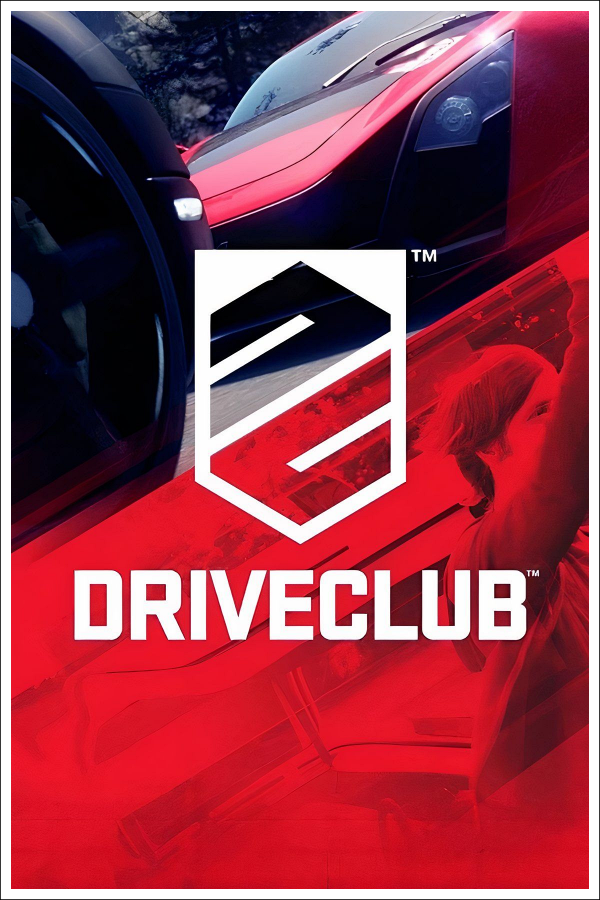
DriveClub (DriveClub Recomp)
DriveClub
About the project
Driveclub es un videojuego de carreras desarrollado por Evolution Studios y publicado por Sony Computer Entertainment, en exclusiva para la consola PlayStation 4. Driveclub fue anunciado oficialmente durante la conferencia de prensa de PlayStation el 20 de febrero de 2013. El juego fue lanzado en octubre de 2014.
3 versions of DriveClub
You're viewing: DriveClub (DriveClub Recomp)
Official project information
DriveClub Recomp
DriveClub for PS4 (version 1.28), running natively on Windows and Linux.
<img width="1920" height="1080" alt="s009 20" src="https://github.com/user-attachments/assets/4c0fe155-eae9-4c78-aa24-4a5b154e2b9f" />The source code is in this repository and the build is on the Releases page.
Join our Discord community: https://discord.gg/62b8jceumR
Planned for the next major release
- DLSS/FSR Frame Generation, DLSS up to 4X, FSR up to 2X
- Public online lobby (being tested on our Discord first)
- Further performance and stability improvements
How to play
- Download the latest
driveclub-recomp-<version>-win64.zipfrom the Releases page and extract it anywhere you can write to (notProgram Files). - Have your own game dumps ready:
- the version 1.28 update folder (it contains
eboot.bin) - the base game folder (it contains
game000.dat)
- the version 1.28 update folder (it contains
- Double-click
DriveClub.exe, press Browse next to each folder, check the settings and press Play.
Nothing to install. Your own files are never modified or copied, and the folders you chose are remembered.
Logs are in the logs folder.
Linux (x86_64)
The AppImage is built by the AppImage workflow, or locally with
bash packaging/appimage/build-appimage.sh <version> (see BUILDING.md).
It uses the same game dumps and keeps its settings, prepared image, saves and logs in a
data/ folder beside the AppImage whenever that folder is writable (otherwise in
~/.local/share/driveclub-recomp). Running the AppImage opens the native Linux launcher, with
the same game folders, display, driving and patch settings as the Windows launcher. Press
PLAY there and the recomp prepares and starts; --play starts it headlessly with the saved
settings. Use DATA FOLDER > Change... in the launcher to select another folder or move the
existing data. Put update/ and base/ next to the AppImage, use --setup UPDATE BASE once,
or set DRIVECLUB_UPDATE_DIR and DRIVECLUB_BASE_DIR. The choice is stored in data-path
beside the AppImage; DRIVECLUB_DATA_DIR overrides it, and a portable marker selects data/
when no folder has been chosen.
Highlights
- The game's own x86-64 code runs directly on your CPU, with no CPU emulation. The PS4 system libraries are reimplemented and the GPU commands are translated to Vulkan, similar to Wine and DXVK
- Playable from the menus through races, photo mode and saves, with trophies and multiplayer: private sessions with friends, and a public lobby that is being tested on our Discord
- About 60 FPS at 4K in the heaviest scenes on our test PC (RTX 5070 Ti, Ryzen 7 5800X3D), higher in lighter ones, with an unlocked frame rate option in the launcher that keeps the game at its normal speed
- Runs on NVIDIA, AMD and Intel graphics through Vulkan, with Resizable BAR used automatically where the driver allows it
- Keyboard racing layout and any gamepad (Xbox, PlayStation, Switch Pro, 8BitDo)
- Steering wheels with force feedback from the car's tyre physics, pedals with clutch, an H-pattern shifter and a USB handbrake
- DLC content (add-on cars, bikes, tours and livery decals) can be unlocked from the launcher, built from your own game files. Cars you earn by playing still unlock through normal progression
- A launcher window that resizes from every edge and corner and stays sharp at any display scale
- A
modsfolder for loose-file mods: files in it replace the game's own files of the same path. See Making mods
Controls
Any gamepad works. Keyboard, mouse and gamepad can be used at the same time.
Controller button prompts
Button prompt icons can be configured in the launcher under Driving > Controller buttons (or via button_prompts, xbox_buttons, and playstation_buttons in driveclub.ini):
- Prompts:
Auto(automatically follows the controller in use, and shows key caps when you play with the keyboard),PlayStation, orXbox. - Xbox buttons:
Xbox One(modern flat A/B/X/Y buttons with View icon) orXbox 360(glossy gem buttons with Back pill). - PlayStation buttons:
PS4(the game's original symbols) orPS5(DualSense-style icons).
| Action | Keyboard |
|---|---|
| Accelerate | W |
| Brake / reverse | S |
| Steer | A / D |
| Handbrake | Space |
| Shift down / up | Q / E |
| Change camera | C |
| Touchpad left / right half | R / T (R is Reset to Track) |
| Accept | Enter / Z |
| Back | Backspace |
| Pause | Esc / P |
| D-pad | Arrow keys |
| Look around | I J K L or the mouse |
F2 shows how far the clutch, brake and throttle are pressed, as bars with their percentage in the bottom left corner (a pedal at full travel is drawn bright and outlined; without a wheel it shows the gamepad's triggers). The launcher's "Show pedal inputs" turns it on at startup. Page Up and Page Down make the picture brighter or darker (the launcher's Picture card has the same brightness, contrast and gamma). F4 shows all three: each press of F4 picks the next one for Page Up and Page Down. Changes are kept for the next start. F5 and F6 narrow and widen the view. F7 turns mouse look on or off. F9 and F10 are the anti-aliasing keys above. F11 switches neural rendering off and on and Shift+F11 picks its next style. Print Screen saves a screenshot. F12 cycles the performance overlay through hidden, compact and expanded views. If the launcher enables it at startup, it starts compact. The overlay includes a raw present-time graph and rolling 60-second 1% / 0.1% low FPS (averages of the slowest frame times, after a 10-second warm-up). Text readouts refresh every 100 ms (10 Hz); FPS retains its original smoothing. Samples are collected every present, including while hidden. On supported Windows game builds it also shows the track, current time of day, time compression, resolved cloud-cover preset and current precipitation intensity. Set BB_SCENE_OVERLAY=0 to keep only the original readouts. With HDR on, Page Up and Page Down set the HDR brightness instead. The bindings are in data\user\input_config\default.ini and can be changed there.
Steering wheels
Any wheel that Windows lists as a game controller works: the game sees it as a PS4 wheel. Pedals with a clutch, an H-pattern shifter (on the wheel or as a controller of its own, such as a Logitech Driving Force Shifter on a USB adapter) and a handbrake with a USB of its own work too. Everything is set up on the launcher's Driving tab, under Wheel and force feedback.
Setting up
- Connect the wheel, pedals, shifter and handbrake before starting the game.
- Press Wheel Setup (or run
WheelSetup.exenext toDriveClub.exe). Pick the wheel, and the pedals if they have a USB of their own. Every control is a row with its current mapping and a live view: click Map and turn the wheel, press the pedal, button or gear, or pull the handbrake; × clears a row. Save writesdata\user\input_config\default.ini. - Set the rotation in the wheel's own software (Pit House, G HUB, ...) and enter the same number in Wheel Setup.
- For the shifter choose a manual gearbox, and for a wheel turn on hardcore handling. The Sim driving preset on the Assists and view page does both and turns the assists off.
The Handbrake row listens on every controller, so a USB handbrake is found by pulling it; one that is a switch is mapped as a button. The game has no handbrake for wheels: pulled past 40%, the handbrake presses the circle button, which is the handbrake in a race.
Pedals on a USB of their own (wheel_pedals in default.ini) and wheels that Windows lists as two controllers of one name, as a Fanatec base is, are picked by Wheel Setup (for the second, wheel_device = FANATEC Wheel @col01: the HID collection, which stays the same from start to start).
The button rows (shift up and down, the PS4 buttons, FFB gain + and −) take a button of any controller, not only the wheel: a button box or a second controller is written with its name (wheel_button = 3, cross, BBI-32 Button Box). They also take a key, or a key with Ctrl, Shift or Alt, so a Stream Deck that sends keys works too (F13 to F24 are free for it); keys reach the game while its window is in front. The launcher's FFB gain + and − rows take a button or a key the same way.
Force feedback
- Reworked Physics (recommended): the force is worked out from the car's front tyres in the game's own simulation, the way a racing sim does it. The wheel gets heavier as the tyres load up in a corner, goes light when the front tyres start to slide and the car runs wide, and turns the right way by itself when the back of the car steps out. Kerbs, bumps and the road come through on top. It learns each car's tyres in the first corners.
- Original Physics (the default): the forces the PS4 game made for a Logitech wheel. Its settings are
wheel_ffb_gainandwheel_ffb_vibrationindefault.ini(100 = as the game sends them, up to 2000; a few hundred is normal).
Preset sets the sliders for your kind of wheel: Direct drive (Fanatec DD, Moza, Simagic, Simucube, ...) or Gear or belt (most Logitech, Thrustmaster and Fanatec CSL wheels). Then adjust them to taste:
| Setting | Range | What it does |
|---|---|---|
| Gain | 0–300% | The overall strength. At 100% a hard corner uses about 60% of the wheel's force. |
| Filter | 0–100% | Smooths the force. 0 on a direct drive, a little on gear wheels. |
| Minimum force | 0–30% | Lifts the smallest forces past the dead spot that gear and belt wheels have around the centre. |
| Damper | 0–100% | Weight when you turn the wheel, strongest when the car stands still, as with real tyres. |
| Kerbs | 0–200% | The rumble of kerbs. |
| Road | 0–200% | Bumps and the road surface. |
| Slip | 0–200% | A buzz when the tyres slide, spin or lock. |
| Soft lock | Game, Off, 540°–1080° | Stops the wheel at the car's own steering lock (Game) or at a fixed angle. |
| Vibration wave | Sine, Square | Square feels sharper on gear and belt wheels. |
| Invert forces | Turns the forces around if the wheel pulls the wrong way. |
Direct drive: gain 100, filter 0, minimum force 0, kerbs 50, road 50, slip 30, damper 10. Gear or belt: gain 130, filter 10, minimum force 8, kerbs 80, road 80, slip 50, damper 0.
The settings are kept in default.ini (wheel_ffb_physics_*), and the game picks up changes to it within a second, so FFB Tuner.bat can change them while you drive. If the wheel feels flat in hard corners, lower the gain: the log in logs says how often the force was at the wheel's maximum (FFB clipping). wheel_ffb = off turns force feedback off. FfbTest.exe plays single forces on the wheel without the game, to check the directions.
Field of view
The Field of view slider on the Assists and view page sets the view from 50% to 150% of the game's own, for every camera. While playing, F5 narrows it and F6 widens it in 5% steps; the new value shows at the top of the screen and is kept for the next start (data\user\camera.ini). At 100% the view is left as the game and the patches have it. Any other value counts from the game's own view and takes the place of the widescreen field-of-view fix (which is about 131%).
Tested with a Moza R3, a Fanatec 8 Nm direct drive base with ClubSport Pedals and a Fanatec handbrake plugged into the pedals, and a Logitech Driving Force Shifter. On some PCs Windows takes a long time to list game controllers; the game then starts later and pauses when a controller is plugged in while it runs.
Settings
The window that opens when you start DriveClub.exe has every setting. Press Play to save them; they are kept for later starts.
Performance preset: Handheld, Low, Medium, High or Ultra pick the render and output sizes for your PC. Ultra also turns on every Graphics tab feature except neural rendering. You can still change each setting afterwards.
Frame rate: 30, 60 (deltatime), 60 with a fixed tick, Unlocked (VRR) or Unlimited (no cap and no V-Sync, above your display's refresh rate if your PC can; the picture can tear). Unlocked (VRR) is for G-Sync and FreeSync displays. Unlocked runs up to 3 FPS below your display's refresh rate, the game keeps its normal speed, and variable refresh (G-Sync, FreeSync) is on: frames go out in step with the display, so a VRR display shows each one as it comes. For G-Sync, enable it for windowed and full screen mode in the NVIDIA Control Panel (the game's full screen is borderless). Frame cap (with Unlocked) sets the highest frame rate: a little below what your PC can hold (for example 90 when it runs at about 95-100) gives the steadiest motion. No V-Sync is for displays without variable refresh: unlocked with no cap and no V-Sync, so each frame is shown the moment it is done (expect tearing). Above about 120 FPS the game's movement timing breaks (the car can run slower or behave wrongly), so cap it in your graphics driver if your PC goes past 120.
Resolution: output from 720p to 8K, render size from 720p to 8K, an aspect ratio picker with ultrawide sizes and a field-of-view fix. Sizes above 1080p use more memory; the needed memory patch is added for you.
Mirror and reflection updates: Live (default) draws the small scene of mirrors, rain and reflections every frame. Static (faster) draws it once and keeps that picture, which is much faster but stops reflections and rain on the glass from updating. The Handheld preset uses it.
Anti-aliasing: Game keeps the original. FSR has three versions in the FSR version row: FSR 3.1 works on any graphics card, FSR 4 (INT8) is sharper but costs more per frame and runs on Radeon RX 6000 and newer, GeForce RTX and Intel Arc, and FSR 4.1 (Radeon) is AMD's own newer model for Radeon cards. DLSS (RTX) needs a GeForce RTX card; if it is not available the launcher falls back to FSR. Do not turn on the community patch "Disable motion blur and depth of field" with it: they do not work together and the game keeps its own anti-aliasing then.
Upscaling: with FSR (any version) or DLSS: DLAA (Native with FSR) draws every pixel; Quality, Balanced, Performance and Ultra Perf. draw the game at 1/1.5, 1/1.7, 1/2 and 1/3 of the output size and rebuild the full picture, for more FPS each. The Render resolution choice does not apply then. With upscaling, F9 leaves FSR or DLSS on: the game draws at the smaller size, so there is no full-resolution picture to switch to. Sharpness: 0 to 100 (80 by default).
HDR: for HDR monitors and TVs; turn on "Use HDR" in Windows' display settings first. The game makes an SDR picture, so the port turns it into HDR10: the HUD and menus at a comfortable white, and the 3D scene's highlights (the sun, lights, reflections, glints) brighter, taken from the game's own scene before its tone mapping where the SDR picture runs out. White surfaces such as snow and painted lines stay white, not glaring. HDR brightness (100 to 600 nits, 350 by default; Page Up / Page Down while playing, kept for the next start) sets how bright white is; HDR peak brightness (400 to 2000 nits, 1000 by default) should match your screen's HDR peak.
Neural rendering (Graphics tab): DLSS neural rendering on GeForce RTX cards. The row stays locked until nvngx_dlssnr.dll is next to the game; the launcher says what is missing. NVIDIA Reflex and AMD Anti-Lag 2 lower the input delay on GeForce and Radeon cards.
Anisotropic filtering: keeps textures on roads and terrain sharp at a shallow angle. Automatic is 16x (4x on integrated graphics); you can also choose Off, 2x, 4x, 8x or 16x.
Motion blur exposure (Detail > Effects): Slow (default) keeps the original 30 FPS exposure for a cinematic look; Fast uses the shorter 60 FPS exposure. Both keep their selected exposure on Unlocked. Hover each choice for its description. F3 switches between them in-game; the launcher selection is saved for the next launch. This choice remains available with FSR or DLSS anti-aliasing.
Unlock DLC content: off by default. Unlocks the add-on cars, bikes, tours and livery decals. The launcher reads the vehicle list, the tour list and the livery list from your own game archive and builds changed copies that the game uses. Your game folders are not modified.
Gameplay: player name, borderless fullscreen, FPS counter, motion blur and depth of field off, no reset-to-track timer, no track barriers, and photo mode options.
Driving: the field of view, Lock to horizon (Off, Cockpit or All views: the horizon stays level while the car leans and dips, as in Assetto Corsa; the driver's head still looks into corners and its sway is smoothed, which is easier on motion sickness; All views does the bonnet, bumper and chase views too), Camera shake (0 to 100% of the game's shake over bumps and kerbs; the game's own Options menu has a Camera shake setting that adds more on top, so set it to 0 there too for the calmest view), the gearbox, brake assist, hardcore handling and wheel assist, and the steering wheel (Wheel Setup and force feedback, see Steering wheels). Sim turns the assists off, with a manual gearbox and hardcore handling; Assisted uses an automatic gearbox, brake assist and wheel assist; Game Defaults leaves them to the game's own menu. A choice made here wins over the game's menu; In-game hands that option back to the menu.
Online play (General tab): Off, Host a session or Join a session (type the host's IP address). Players reach each other over a home network or a VPN. Run Allow-Firewall.bat once. Both players need the same version. More in docs/online. A public lobby is being tested on our Discord and is not part of this release.
Telemetry output and DualSense (General tab): the game can send its telemetry over UDP in the Forza Dash layout for dashboards and motion rigs, and a DualSense connected with the USB cable gets adaptive triggers and haptics. Both are off unless you turn them on.
Save profile (General tab, SAVES): four separate careers on one install, a backup of your saves at every start (the last ten are kept), and Back up now and Restore the latest backup buttons.
Unlock every car and bike: off by default. Makes every car and bike available from the first level, including the add-on content. Cars won in events stay as the game has them.
Picture (Display tab): brightness, contrast and gamma. In the game, F4 picks contrast or gamma and Page Up / Page Down change the value.
Lock to horizon and Camera shake (Driving tab): keep the horizon level in corners (cockpit or all views), and lower how much the camera shakes.
Skip the hardware check: the launcher checks that your processor and graphics card can run the game (a processor with AVX, BMI1, LZCNT and MOVBE, and Vulkan 1.3). If it ever refuses hardware that works, turn this on to start anyway.
Benchmark
The Benchmark card in the launcher measures how the game runs with your settings. Choose the track, car, time of day, weather, rain and length, then press Run benchmark. The game starts straight into the event, the AI drives, and the game closes by itself when it is done. The launcher then shows the average frame rate and the 1% and 0.1% lows (the average of the slowest 1% and 0.1% of frames). The result is also in data\user\benchmark\result.txt and logs\launcher.log. Under the result, the card says what the game actually ran with (render and output resolution, frame limit, anti-aliasing); point at it to see every setting.
Without the window: set BB_BENCHMARK and start DriveClub.exe --play. BB_BENCHMARK=1 uses the defaults (Fraser Valley, Ferrari 458 Italia, noon, clear, 60 s); keys can be given as BB_BENCHMARK=track=chile_race_track_v1,car=fe_f12,tod=18. The game exits when done (exit code 0, or 3 if the race did not start) and prints one line to its log:
Benchmark: result mode=TimeTrial track=canada_road_circuit_02_n car=fe_458 tod=12 weather=Clear rain=dry drive=ai seconds=60.0 frames=2639 avg_fps=43.97 low1_fps=26.94 low01_fps=14.14 p99_ms=32.65 max_ms=103.85 load_s=21.9
A second line, Benchmark: ran render=... output=... fps_limit=... aa=..., lists the settings the game ran with, read by the game itself (the render and output sizes from its own memory). The keys and their values are listed at the top of src/runtime_benchmark.c.
Known issues
- Some reflections are too bright, for example rain drops on the side window and the paint on cars on the stage select screen.
- Anti-aliasing: fast cars can leave a faint trail, because cars have no motion data of their own yet.
- Static (faster) stops reflections and rain on the glass from updating.
- The processor is the limit. Heavy scenes (many cars, trees and rain) drop frames first on slower CPUs.
- First play builds shaders: short stutters in the first minutes until they are cached. This gets better on later runs.
- Online play in this release is private. It works between friends on a home network or a VPN, with the same version for everyone. A public lobby is being tested on our Discord first.
- Mostly tested on NVIDIA graphics cards. AMD and Intel players still report colour glitches or "device lost" crashes in some cases; reports with the log files are welcome.
- Above 120 FPS the game can have issues.
Notes
- You must supply your own, legally obtained dump of the game. No game files are included.
- Tested with: DriveClub, title ID
CUSA00093, version 1.28. The European release (CUSA00003) version 1.28 is accepted too and has been played less. Other versions and repacked dumps have not been tested and may not work. - SmartScreen may warn (More info, then Run anyway). Verify with the checksum.
- Requires Windows 10/11 64-bit, a processor from Intel Haswell (2013) or AMD Excavator or Ryzen onward, and a graphics card with a Vulkan 1.3 driver. About 40 GB of free space is needed for the game dumps.
Building from source
See BUILDING.md. The Linux build produces a native AppImage (packaging/appimage/build-appimage.sh);
the same document lists its dependencies.
Reporting problems
Open an issue and fill in the form. Attach the bug report: without it an issue usually cannot be solved. In the launcher press Save a bug report (General tab). It makes bug-report.zip next to DriveClub.exe with everything below and your settings, and no game files. Drag that file into the issue.
By hand, the same files are in the logs folder:
- the newest
driveclub_<date>_<time>.log(one per start: take the one from the run that went wrong). It starts with your Windows, processor, graphics card, driver and launcher choices, and has a status line every 30 seconds, so nothing else is needed from you. launcher.log: what the launcher saw. It exists even when the game never started, for example when the launcher shows an error.- any
crash_*.dmp: a small file written when the game crashes.
Also say what you were doing when it happened (menu, loading, which event and car).
Credits
The community patches for DriveClub are by Kravickas, TonySSS, ZipperedRain, kalaposfos, squidbus, illusion and u/Charlie_Muggins.
License
GNU General Public License version 2 or later (LICENSE). Parts of the code derive from other GPL projects and keep their original notices in the source files. Third-party components keep their own licenses (THIRD_PARTY_NOTICES.txt).
DriveClub is a trademark and copyright of its respective owners; this project is not affiliated with or endorsed by them.