
Super Mario Sunshine
Sobre el proyecto
Super Mario Sunshine es un videojuego de plataformas japonés de 2002 desarrollado y publicado por Nintendo para GameCube. Es el segundo juego en 3D de la serie Super Mario, después de Super Mario 64 (1996). El juego fue dirigido por Yoshiaki Koizumi y Kenta Usui, producido por los creadores de la serie Shigeru Miyamoto y Takashi Tezuka, escrito por Makoto Wada y musicalizado por Koji Kondo y Shinobu Tanaka.
8 versiones de Super Mario Sunshine
Estás viendo: Super Mario Sunshine
Super Mario Sunshinegithub.com/chasem-dev/sms-pc-portSunPad (Super Mario Sunshine iOS/macOS)github.com/chrissotraidis/sunpadAndroid Port (Player124413)github.com/Player124413/sunpad-android-editon sms launcher (chasem-dev)github.com/chasem-dev/sms-launcherSuper Mario Sunshine (Android)github.com/jbcgames/sms-androidSuper Mario Sunshine (doldecomp)github.com/doldecomp/smsSuper Mario Sunshine (Native PC Port)github.com/TekRantGaming/sms-pc-portSuper Mario Sunshine (PS5)github.com/griches/PS5_Sunshine
Información oficial del proyecto
sms-port
A native PC port of Super Mario Sunshine (GameCube, North America, GMSE01), built from the matching decompilation.
No game data is included. You build the program from source, and it reads the models, textures, levels, music and movies from your own disc image at run time.
For guided setup, updates and a Play button, use our dedicated SMS Launcher for Windows, macOS and Linux. The launcher sets up this port on your computer using your own supported disc image; downloads are on its releases page.
Decompilation progress
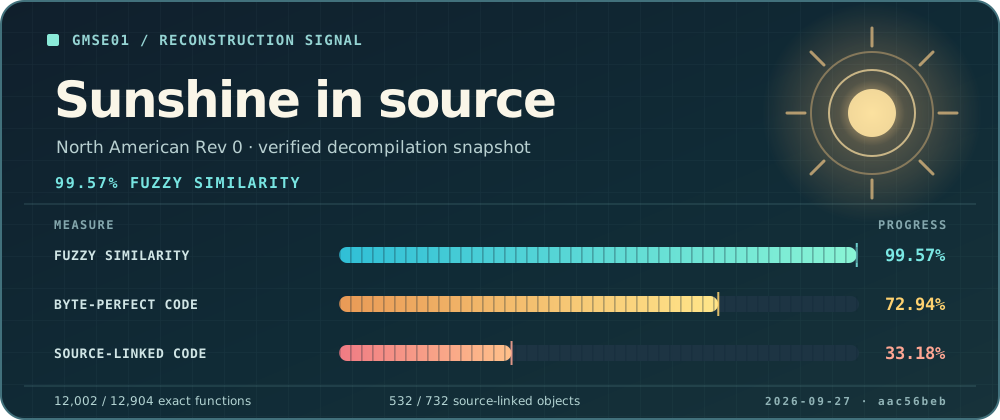
This card shows the GMSE01 decompilation snapshot recorded by the source revision pinned in this port. Fuzzy similarity measures approximate code similarity; the other two tracks show byte-perfect code and code linked from matching source.
Supported systems
| System | Word size | Status | Output |
|---|---|---|---|
| Linux (x86) | 32-bit (default) | plays | build/linux-32/sms |
| Linux (x86-64) | 64-bit (SMS_ARCH=64) | plays; still being tested stage by stage (docs/64-BIT.md) | build/linux-64/sms |
| macOS (Intel, or Apple Silicon under Rosetta 2) | 64-bit | plays | build/macos-64/sms |
macOS, native Apple Silicon (SMS_ARCH=arm64) | arm64 | plays | build/macos-arm64/sms |
| Windows (MSYS2 MINGW64) | 64-bit | boots under Wine; native runtime checks | build/windows-64/sms.exe |
The game code keeps pointers in 4-byte fields, so it was written for a 32-bit machine. The 64-bit builds keep every address the game sees below 4 GiB; see docs/64-BIT.md.
Quick start
-
Get the source, including the decompilation submodule:
git clone --recursive https://github.com/chasem-dev/sms-pc-port.git cd sms-pc-port -
Install the prerequisites for your system: Linux, macOS, Windows.
-
Put your disc image in
rom/: one.iso,.gcmor Dolphin.cisoof GMSE01 Rev 0. -
Build and play:
./build.sh
./run.sh
On Windows, run these in the MSYS2 MINGW64 shell, or run
.\build.cmdand.\run.cmdfrom PowerShell.
The first build compiles about 600 game files and takes a while; later builds only rebuild what changed.
Because the image is in rom/, ./build.sh also makes a standalone copy with the game's files inside (sms-standalone, or SMS.app on macOS) that runs without the image.
See BUILD.md.
You can also keep the image elsewhere and pass it: ./run.sh "/path/to/Super Mario Sunshine (US).iso".
Build and run
The same two scripts work on every system:
| Command | What it does |
|---|---|
./build.sh [IMAGE] | builds build/<os>-<arch>/sms; with an image (argument, SMS_DISC_IMAGE, or the one in rom/) also the standalone copy |
./run.sh [IMAGE] [--headless] | runs that build: with the image you pass, else the standalone copy, else the image in rom/ |
./clean.sh [--all] [--dry-run] | deletes the build output (every build/<os>-<arch>/); never deletes your disc image, and keeps the downloaded SDL2; --all deletes all of build/ |
SMS_ARCH=64 ./build.sh | chooses the word size (Linux: 32 default or 64; macOS: 64 default or, on Apple Silicon, arm64 (native, MACOS-ARM64.md); Windows: 64 default (32 legacy with MINGW32)) |
JOBS=2 ./build.sh | limits parallel compiler jobs (default: all cores) |
SMS_STANDALONE=0 ./build.sh | skips the standalone copy even when an image is found |
./build.sh --help, ./run.sh --help and ./clean.sh --help print the details.
When both a 32-bit and a 64-bit build exist, ./run.sh runs the 32-bit one unless SMS_ARCH=64 is set.
Options
Options can be kept in settings.txt (resolution = 2, texture_packs = on, ...), or set as environment variables before the command, for example SMS_SKIP_MOVIES=1 ./run.sh; an environment variable wins over the file:
| Option | Effect |
|---|---|
SMS_SKIP_MOVIES=1 | skip cutscenes; keep portal animations playing |
SMS_SKIP_INTRO=1 | start at the title: no Nintendo and Dolby logos or opening movie (A skips each of them anyway; a game joining a multiplayer game skips them and the title too) |
SMS_ECLIPSE_SUNSHINE_MOVIES=PATH | Super Mario Eclipse: play the ten movies it kept from Sunshine from this Sunshine disc, at Sunshine's quality (default: the one in rom/; 0 for Eclipse's copies; docs/ECLIPSE.md) |
SMS_LANGUAGE=fr | play in French, German (de), Spanish (es), Italian (it) or Polish (pl) instead of English (en, the default), with that language pack installed |
SMS_HEAT_HAZE=0 | turn off the heat-wave shimmer that distorts the picture in sunny areas |
SMS_PAUSE_TRACKER=0 | hide the pause menu's Shine and blue coin tracker |
SMS_RADAR=1 | show the radar: the stage around Mario with its Shines and blue coins; SMS_RADAR_ZOOM (game units, default 2500) and SMS_RADAR_SIZE (percent) |
SMS_BUTTON_PROMPTS=style | the buttons shown in the game's text and on the FLUDD gauge: gamecube (the game's own, the default), xbox, playstation, steamdeck, nintendo, keyboard, or auto (keyboard and mouse or the controller in use) |
SMS_BUTTON_PROMPT_PAD=style | with auto, how every controller's prompts look: xbox, playstation, steamdeck, nintendo or gamecube (default: match the controller, Nintendo for Switch controllers) |
SMS_NINTENDO_LAYOUT=1 | controllers are printed like Nintendo's (A on the right, B at the bottom, X on top, Y on the left): A and B, and X and Y, are swapped for controllers the game reads as another kind, so each button does what its letter says, and matched prompts are Nintendo's. Switch controllers go by their letters already (nintendo_layout) |
SMS_BUTTON_PROMPT_DIR=dir | the prompt images, <style>.png (eight 64x64 icons in a row: A B X Y Z L R C-stick); SMS Launcher draws them from your bindings |
SMS_HDR=1 | HDR output on Windows while Windows HDR is on: the SDR picture is expanded to HDR and presented through a Direct3D 11 swap chain (scRGB). --display-info prints what Windows reports for each display (HDR, peak and full-frame nits, SDR content brightness, calibration profile) as JSON |
SMS_HDR_PAPER_WHITE=nits | how bright ordinary whites, menus and text are in HDR; auto (default) uses Windows' SDR content brightness |
SMS_HDR_PEAK=nits | the brightest an HDR highlight reaches; auto (default) uses the display's peak as Windows reports it, which follows a Windows HDR Calibration profile |
SMS_HDR_CONTRAST=n, SMS_HDR_SATURATION=n | HDR contrast (50 to 150) and saturation (0 to 200), percent; 100 leaves them as they are |
SMS_HDR_HIGHLIGHTS=n | 0 to 100 (default 40): how far the brightest parts climb toward the peak, in stops; 0 keeps SDR white at the paper white, 100 puts it at the peak |
SMS_HDR_COPY=1 | hand each frame to Direct3D through system memory instead of a texture shared with OpenGL (about 1.3 ms more per frame at 4K). The game does this by itself when the graphics driver will not share a texture; this forces it, for a driver that shares one but shows it wrong |
SMS_AUDIO=0 | no sound |
SMS_VOLUME=n | master volume, 0 to 100 (default 100) |
SMS_SAVE_DIR=dir | memory card folder |
SMS_SAVE_STATE_DIR=dir | save state folder (default: savestates beside the memory card folder) |
SMS_BINDINGS=file | key bindings file (default bindings.txt in this folder) |
SMS_DISC_IMAGE=file | disc image to use when none is passed |
--headless (after the image) or SMS_HEADLESS=1 | no window, for testing (Linux only) |
SMS_OVERLAY=1 | open the debug overlay at start |
SMS_GX_SCALE=n | render at n times the GameCube's resolution |
SMS_ANISO=n | anisotropic filtering, 2 to 16 (up to what the GPU supports), for sharper textures at glancing angles; textures whose mipmap levels are an effect (such as the sea's sparkles) keep the GameCube's level of detail |
SMS_FULLSCREEN=1 | borderless fullscreen at the desktop's resolution (on Windows, an undecorated normal window one row taller than the monitor, without an SDL fullscreen transition, so the driver does not promote it to a fullscreen flip that blanks the monitor); exclusive switches the display to SMS_FULLSCREEN_MODE=WxH@Hz (else the desktop's mode; on a monitor with Windows HDR on it stays borderless, since a mode switch can leave HDR's colours wrong). F11 or Alt+Enter toggles fullscreen while playing |
SMS_DISPLAY=n | the monitor to open on (0 is the primary one; by default, the one under the mouse) |
SMS_VSYNC=1 | wait for the display's refresh; adaptive shows a late frame at once instead of waiting a whole refresh |
SMS_PRECISE_TIMER=1 | Windows: precise frame timing, steadier frame times and less judder for a little more CPU use (see Frame rate) |
SMS_MSAA=n | multisample anti-aliasing with 2, 4 or 8 samples (up to what the GPU supports) |
SMS_GX_GL_THREAD=0 | keep OpenGL on the game's own thread instead of a thread of its own (for troubleshooting a graphics driver) |
SMS_GX_BACKEND=vulkan | draw with Vulkan instead of OpenGL (renderer = vulkan in settings.txt; see docs/VULKAN.md); without a working Vulkan driver the game uses OpenGL |
SMS_FXAA=1 | FXAA on the final picture, smoothing edges MSAA leaves (alpha-tested foliage, fences) |
SMS_SHARPEN=n | contrast-adaptive sharpening of the final picture, 0 to 100 |
SMS_GAMMA=x | brightness curve: 1.0 is unchanged, above 1 is brighter (0.3 to 3) |
SMS_COLOR_SPACE=ntsc-m | colour correction, as Dolphin's: the picture's colours as the TVs the game was made for showed them, converted to the sRGB display's: ntsc-m (SMPTE 170M), ntsc-j (the same with Japan's bluer 9300K white) or pal (EBU); off by default |
SMS_GAME_GAMMA=2.35 | the CRT gamma the game was made for, 2.2 to 2.8 (2.35 for NTSC, nearer 2.8 for PAL): the picture is decoded with it and encoded for SMS_DISPLAY_GAMMA (srgb by default, or 1.8 to 2.8), which darkens the midtones as those TVs did; off by default. With HDR the display gamma is 2.2, what the HDR expansion decodes with |
SMS_ASPECT=stretch | fill the window instead of keeping the picture's shape; integer keeps whole multiples of 640x528 |
SMS_PRESENT_FILTER=sharp | scale the picture with crisp pixels (nearest for none at all; default bilinear, which averages when the internal resolution is above the window's; fsr upscales a lower internal resolution with AMD FSR 1, sharpened as much as SMS_SHARPEN asks; nis with NVIDIA Image Scaling, sharpened from NVIDIA's default up as SMS_SHARPEN asks) |
SMS_FSR_MODE=quality | with fsr or nis, render at a share of the picture's size on screen and upscale the rest: native (100%), quality (67%), balanced (59%), performance (50%) or ultraperformance (33%); it sets the internal resolution in place of SMS_GX_SCALE |
SMS_WIDESCREEN=16:9 | widescreen (also 21:9, 16:10): a wider view, with the HUD and menus kept 4:3 in the middle; the map screen fills the whole width |
SMS_FRAME_RATE=30, 60, or 120 | gameplay frame rate: 30 (GameCube native), 60 (port default), or 120 (optional) for the title, file select, episode select and stages; the boot logos and movies stay at 30 |
SMS_WIDESCREEN_HUD=edges | with widescreen, move the gameplay HUD's counters to the left edge and the water gauge to the right one, and the pause menu's Shine tracker, save state and settings hints and save state menu (and Eclipse's own HUD-side text) with them |
Optional mods, such as HD texture packs, go in mods/; python3 tools/mods/get.py textures downloads and installs the UHD texture pack there.
Native mods, programs and Lua scripts that hook into the game, draw over it and add settings to its Mods menu (F1), go there too; they are made with the mod SDK, and sms-mod-templates has templates and example mods to start from.
Saves go to a memory card in slot A, kept as files in ~/.local/share/sms-port/card-a on Linux and macOS ($XDG_DATA_HOME/sms-port/card-a if that is set) and in %APPDATA%\sms-port\card-a on Windows.
Every other switch (debugging, tracing, graphics) is listed in docs/DEVELOPMENT.md.
Frame rate
Gameplay defaults to 60 frames a second; choose 30 for the GameCube's native rate or 120 for smoother motion in settings.txt (frame_rate = 120) or with SMS_FRAME_RATE=120 ./run.sh.
The launcher offers these three choices under Settings → Gameplay → Frame rate.
Game speed stays the same. The title, file select and episode select run at the chosen rate too; the boot logos and movies stay at 30 fps.
120 fps is available on any display, but needs sufficient CPU/GPU performance; a display running at 120 Hz or faster shows its full benefit.
With display vsync enabled (vsync = on / SMS_VSYNC=1), a slower refresh rate can limit presentation, so leave vsync off to avoid that limit.
Like on the GameCube, missed retraces can reduce the achieved frame rate in steps.
On Windows, frames normally come within a millisecond or two of their time (6-11 ms apart at 120 fps, 8.3 ms on average), as Windows' sleep wakes on its timer tick.
Precise frame timing (precise_timer = on, SMS_PRECISE_TIMER=1, or the launcher's and the in-game settings) wakes for each frame within a fraction of a millisecond, for steadier frame times and less judder, at the cost of about 4% of one CPU core at 120 fps; it is off by default.
The debug overlay (backtick) shows where each frame's time goes:
game: the game's own code (and the GX commands it writes).GX: the renderer, split intovertices(loading GX vertices),batches(issuing draws),textures,copies(EFB copies) andpeeks.waiting for the GPUis the part of it spent blocked on the GPU, or on the thread that hands the frame to the graphics driver.presentandswap: drawing the frame to the window andSDL_GL_SwapWindow.idle: the game waiting for the next retrace, which is spare time.
If the overlay's GL line says llvmpipe, softpipe or Software, the game is rendering on the CPU and cannot hold 30 fps.
On Linux this is usually the 32-bit build without the GPU driver's 32-bit libraries; build 64-bit (SMS_ARCH=64 ./build.sh) or see BUILD.md.
The window's title, and the overlay's line under GL, name the game's version and the commit it was built from, such as Super Mario Sunshine 2026.10.21 (f5b6846), with + Super Mario Eclipse when Eclipse is built in. The version is the launcher's name for the game when the launcher passes it (SMS_GAME_VERSION), else the date of that commit.
Controls
Controller 1 reads the keyboard and any game controller SDL recognises (A/B/X/Y, Start, right shoulder = Z, triggers = L/R, sticks, d-pad). Keyboard defaults:
GameCube adapters work too. An adapter in Wii U mode (the official Nintendo adapter, WUP-028, and Mayflash and other copies with the switch on Wii U; USB 057e:0337) is read by the game itself, with no extra software, and its controller plays exactly as on a GameCube: analog triggers with their click, the sticks centred where they rest when plugged in. The first plugged port is controller 1. In PC mode an adapter is an ordinary controller for SDL instead.
-
Windows: works with Windows' own driver, with the WinUSB driver that Zadig or Dolphin installs, or with WinUSB that the adapter sets up for itself (the Lossless Adapter in its Switch/Dolphin mode).
-
Linux and Steam Deck: the game needs permission to open the adapter, as Dolphin does. Steam's udev rules (the
steam-devicespackage, and SteamOS) give it already, through libusb. Otherwise SMS Launcher can add a rule (Settings, Controls), or add it yourself and plug the adapter in again:sudo tee /etc/udev/rules.d/51-gcadapter.rules <<'EOF' SUBSYSTEM=="usb", ATTRS{idVendor}=="057e", ATTRS{idProduct}=="0337", TAG+="uaccess" KERNEL=="hidraw*", ATTRS{idVendor}=="057e", ATTRS{idProduct}=="0337", TAG+="uaccess" EOF sudo udevadm control --reload-rules && sudo udevadm triggerIf Steam is running with its GameCube support on, Steam takes the adapter and hands its controllers to the game as Steam controllers; that works too.
-
Mac: read through libusb when it is installed (
brew install libusb).
The game log says how it opened the adapter ([pad] GameCube adapter opened (...)), or why it could not. SMS_GC_ADAPTER=VVVV:PPPP adds another USB id, and SMS_NO_GC_ADAPTER=1 leaves the adapter to SDL.
The default keys are laid out for keyboard and mouse, with mouse look on:
| Action (GameCube button) | Keys |
|---|---|
| Move (control stick) | WASD or arrow keys (hold Left Ctrl for half tilt) |
| Camera (C-stick) | the mouse, or I / J / K / L |
| Jump (A) | left click |
| Dive (B) | right click |
| Switch nozzle (X) | Q |
| Close-up "Mario cam" (Y) | E; the mouse aims FLUDD in it |
| Spray FLUDD softly (R part of the way) | middle click |
| Spray FLUDD fully (R full press) | Space |
| Ground pound, sidestep (L) | Left Shift |
| Map (Z) | Tab |
| Pause (Start) | Enter |
| D-pad | 1 2 3 4 (up, down, left, right) or keypad 8 2 4 6 |
| Debug overlay (frame rate, stats, keys) | ` (backtick) |
| Game and movie speed x1 / x2 / x4 / x10 (overlay open) | F7 |
| Warp menu (debug overlay open) | F8, or a controller's Back/Select button |
| Save a save state | F5, or L1 + R1 (LB + RB) held together on a controller |
| Save states list (in the pause menu) | the same: F5, or L1 + R1 |
| Tracker's previous / next area (in the pause menu) | L / R (Left Shift / Space) |
| Load the newest save state | F6 |
Radar's full map, open / close (radar = on) | M, or a controller's Back/Select button |
Radar's zoom, next step (radar = on) | D-pad up (1) |
Next character (archives in mods/characters/) | F4 |
| Quit (asks first: Y, or Enter on Quit, quits; Esc, N or B stays) | Esc, or the pause menu's Quit Game |
Esc asks before quitting, so a stray press does not lose unsaved progress: Cancel is picked to begin with, Left/Right (or the d-pad) moves between Quit and Cancel, and the mouse works too; the game keeps running behind the prompt but reads no input. Closing the window still quits straight away. The pause menu's last item, Quit Game (under Exit Area, or under Save where there is no Exit Area), opens the same prompt, so a controller can quit too; with a language pack it is that language's "Quit" from the file select.
The warp menu lists every stage on the disc (Eclipse's too) and, under each, its episodes and secret courses with their names and scene files; picking one warps there straight away, as a pipe or the pause menu's Exit Area would, without the Shines that would unlock it.
It warps while a stage is playing (not during a cutscene, dialogue or the pause menu); the game keeps running behind it but reads no input.
Arrow keys or the d-pad (or the left stick) move, Enter or A opens a stage and warps, Esc, Backspace or B goes back; LB/RB and Page Up/Down skip a page, and the mouse works too.
F8 and Back/Select open it only while the debug overlay (`) is open; otherwise they are ordinary keys and buttons, so PAD_BACK can still be bound to a game control (it then opens the menu instead while the overlay is open).
Pause menu tracker
The pause menu shows, at its bottom left, the Shine Sprites and blue coins of an area: how many you have of all there are, as x20/41 in the HUD's own counters, on a green brushstroke once you have them all.
It opens on the area you are in; L and R step through the others you have been to (Delfino Airstrip, Delfino Plaza, the seven areas and Corona Mountain), named in the file select's lettering.
The counts are the game's: an area's eight episodes and its 100-coin and two other Shines, the Airstrip's two, and the Plaza's other 41; 30 blue coins in each area, 20 in the Plaza (the Airstrip's one included) and 10 on Corona Mountain.
pause_tracker = off in settings.txt (SMS_PAUSE_TRACKER=0) hides it. Eclipse builds have Eclipse's own tracker instead.
Radar
radar = on in settings.txt (SMS_RADAR=1) shows a round map at the HUD's top right while a stage plays: the stage close around Mario (25 m to its edge), north up, scrolling as he moves, with an arrow at its centre that turns the way he faces.
The stage's Shines and blue coins are on it as the HUD's own icons, at their places whether or not they have appeared yet; a Shine you already have is the pale blue of the game's empty Shine, and a blue coin you have is gone.
It hides in cutscenes, conversations and the pause menu. radar_zoom sets how far it reaches (in the game's units, 100 a metre) and radar_size its size in percent; radar_place how it makes room for the life meter at the same corner (yield, the default, moves down under it while it is shown; beside, below, bottom_left and corner are the others, settings.txt). With widescreen_hud = edges it moves to the right edge with the HUD.
D-pad up (1 on the keyboard) steps its zoom through 100%, 50%, 25% and 200% of radar_zoom, showing the reach under it for a moment.
M, or a controller's Back (View, Select, Share) button, opens the full map: the whole stage over the dimmed game, as wide as the screen, with the area's name, Mario's arrow and the same Shines and blue coins, to the game's own map screen sounds. The game goes on under it, so Mario can still be steered; the same button closes it. It is the MAP control in bindings.txt.
In multiplayer the other players are smaller white arrows, turning the way each faces; on the radar one beyond its reach waits at its edge, fainter, in their direction, and on the full map each has their name under their arrow.
The maps are pictures of every stage from straight above, made from the disc by tools/radar/gen_maps.py (in assets/maps, one per stage, matched to the stage by its collision, and by its scene where stages share one); a stage without one, a mod's, has no radar.
Super Mario Eclipse's stages have theirs in a pack made from its disc, which tools/mods/get.py eclipse installs with it in mods/maps/eclipse (get.py eclipse-maps alone); the game reads every pack in mods/maps besides assets/maps.
In Eclipse the radar and the full map show its Shines past the game's 120 as got or not, and the full map names its areas as its pause menu does.
Settings menu
The launcher's settings can be changed while you play. Pause the game, then press Y (F by default) at the pause menu's top right, under LOAD SAVE STATE, where it reads SETTINGS (both hints move left of the life meter while it is shown). The menu is drawn by the game in its own lettering and plays the pause menu's sounds. It has a page for each of the launcher's panes (Graphics, Display, Gameplay, Controls), and a HUD page of its own: up and down choose, left and right (or A) change an option or open a page, B goes back; hold X to hide the menu and look at the picture.
Changes apply at once, behind the menu. They are the options of the same names in the launcher and settings.txt: started from SMS Launcher, the game saves each change to the file SMS_SETTINGS_SAVE names (JSON in the launcher's values), and the launcher keeps them as its settings when the game closes, so the next game starts with them. Without it they last until the game closes. The menu lists only what this computer can do (anisotropic filtering up to the card's limit, fullscreen resolutions the display offers, HDR only on an HDR display), and keeps the old setting when a new resolution or sample count does not fit in the card's memory.
- Graphics: a preset (Low, Medium, High, Ultra, as in the launcher), resolution, anti-aliasing, FXAA, anisotropic filtering, sharpening, the upscaler and its quality, HD textures and how they load, shader warm-up and the heat-wave effect.
- Display: fullscreen, its type, resolution and monitor, screen format, screen icons at the edges, aspect ratio, brightness, colour correction (colour space, TV gamma and display gamma), frame rate, V-Sync, the performance overlay, and HDR with its settings (HDR can be turned on only where Windows HDR is on for the display).
- Gameplay: skipping cutscenes, volume, separate music and sound effect volumes (
SMS_MUSIC_VOLUME,SMS_SFX_VOLUME, ormusic_volumeandsfx_volumeinsettings.txt; music is every tune the game's music sequences play, jingles included, and movie sound, and everything else is sound effects), the camera (invert, free camera, speed) and mouse look and its sensitivity. - Controls: soft trigger depth, rumble strength, and the button prompts and the controller they follow.
- HUD: Hide HUD hides the game's HUD, the parts switched on below it (the coin, Shine, blue coin, lives and red coin counters, the health meter, FLUDD's water gauge): only from the picture, so the HUD's animations, sounds and FLUDD's messages carry on, and the counters' sparkles go with them. While the pause menu is up the HUD shows, so the counters can be read there, and it hides again as the menu closes. H (
HUD_TOGGLEinbindings.txt) switches Hide HUD while playing. The launcher has no such settings, so they are kept inhud.txtbeside the memory card's folder (%APPDATA%\sms-porton Windows).
A few take effect later: the frame rate from the next area (it is chosen as an area loads, so 120 can be chosen only when the game started at 120), the screen format as the next area loads (the camera is set up then), HD texture loading and shader warm-up as areas load. Language packs, Super Mario Eclipse, HD cutscenes, key and controller bindings and the launcher's own options (updates, Discord, theme) stay in the launcher: they are set before the game starts.
Save states
A save state is the game at one moment: in a level, F5 or L1 + R1 (LB + RB) saves it. The pause menu shows those buttons at its top right with LOAD SAVE STATE: press them there to open the list of states, newest first, with a picture of each; A loads one, Y deletes it, B goes back. F6 loads the newest without the menu. The buttons show as your keyboard or controller shows them, from the launcher's button prompt pictures (their names without the launcher).
Loading a state saved by the same build of the game puts everything back as it was, Mario, enemies, the camera, the music, in place and at once. A state from another build (an update, someone else's game, another word size) cannot be put back that way; it takes you to its level and episode and puts Mario where he was, with his health, FLUDD's water and nozzle, and the progress the state had (Shines, coins, lives). The list marks those states "position".
States are files (*.smsstate) in a savestates folder beside the memory card folder (~/.local/share/sms-port/savestates by default; SMS_SAVE_STATE_DIR or save_state_dir sets another); share one by sending the file. Loading a state takes you to its progress too, so saving to the memory card afterwards saves that. Saving a state does not touch the memory card. A state keeps you as the character you play as now (mods/characters), whoever it was saved as.
How states work, and their limits: docs/SAVE-STATES.md.
Multiplayer
Up to eight players can play one game together over the network: the host plays as Mario on their own save, and the others join as Luigi, Wario, Metal Mario, and Fire, Purple, Orange and Ice Mario. The host can take fewer (SMS_MULTIPLAYER_MAX_PLAYERS, 2 to 8; the launcher has it as Max players). Shines, coins, blue and red coins and lives are shared and saved in the host's file, everyone plays the host's level with the host's enemies and sees everyone's water, and only the host takes the group elsewhere. The host can have players collide with each other (Player Collision in the settings menu while hosting, or SMS_MULTIPLAYER_COLLISION=1), and server mods can run water fights, FLUDD's water splashing the other players as it splashes Shadow Mario (ext/multiplayer/README.md).
SMS Launcher's Multiplayer button hosts or joins; without it, SMS_MULTIPLAYER=host hosts on UDP port 24002 (SMS_MULTIPLAYER_PORT), and SMS_MULTIPLAYER=join SMS_MULTIPLAYER_ADDRESS=host:port joins. The host forwards that port on their router. Details: ext/multiplayer/README.md.
To change them, edit bindings.txt (CONTROL = KEY KEY ..., one control per line; a line replaces that control's defaults), or point SMS_BINDINGS at another file.
Controller buttons can be remapped the same way, by name: PAD_A, PAD_B, PAD_X, PAD_Y, PAD_LB, PAD_RB, PAD_LT, PAD_RT, PAD_START, PAD_BACK, PAD_DPUP … (the full list is in bindings.txt). A line's keys and buttons each replace only their own kind, so A = PAD_Y moves A to the controller's Y button and keeps the left click; Z = PAD_RT puts Z on the right trigger. L and R stay analog when bound to a trigger.
Mouse buttons can be bound like keys: MOUSE_LEFT, MOUSE_RIGHT, MOUSE_MIDDLE, MOUSE_BACK and MOUSE_FORWARD (the side buttons), e.g. A = MOUSE_LEFT X. With mouse look, the click that takes the mouse back after F10 does not press anything.
Two keys or two buttons joined with + must be held together: the default SAVE_STATE = F5 PAD_LB+PAD_RB saves with F5, or with L1 and R1 (LB and RB) held at once. While one of such a pair is held, the game does not see the other, so holding L1 and then pressing R1 does not also press Z.
L_SOFT and R_SOFT are a light L or R press: the trigger goes part of the way, without the click, as when a GameCube trigger is pressed gently (for example, spraying FLUDD on the move with R). R_SOFT is the middle mouse button by default and L_SOFT has no key; bind them like any other control (R_SOFT = MOUSE_MIDDLE LALT PAD_RB). SMS_SOFT_TRIGGER=n (soft_trigger) sets how far, 5 to 95 percent (default 95: as far as a trigger goes without the click).
SMS_STICK_DEADZONE=n (stick_deadzone, or Stick Dead Zone in the settings menu) sets how far a controller's sticks go before they move anything, in percent of their travel, 0 to 50 (default 15, the console's own). Raise it for a stick that drifts; lower it for small movements to count. It applies to both sticks of every controller, a GameCube adapter's too, each axis on its own as on the console, and the rim still reads in full.
SMS_CAMERA_INVERT_X=1 and SMS_CAMERA_INVERT_Y=1 invert the C-stick's camera control left/right and up/down, for keys and controllers alike (recorded .dtm movies are played as recorded). SMS_FLUDD_AIM_INVERT_Y=1 flips the control stick's up and down when Mario aims FLUDD in place (R held all the way down while standing, or L held to walk sideways), and =0 leaves it as on the GameCube; unset, it follows SMS_CAMERA_INVERT_Y, so aiming follows the camera's setting. It leaves the close-up camera Y switches to alone: there the control stick turns the camera as on the GameCube. SMS_CLOSE_CAMERA_CSTICK=1 lets the C-stick turn the close-up camera Y switches to, and so aim FLUDD in it, the way it turns the normal camera (Invert camera X and Y apply); the control stick keeps working there too. It also aims FLUDD in place with the C-stick (R held all the way down, or L held to walk sideways): the C-stick turns Mario and tilts FLUDD the way it turns and tilts the close-up camera, and the camera follows behind him instead of turning. With L held the control stick still walks him sideways, so he can move and aim at once.
The launcher sets them from Settings → Gameplay → Invert camera X / Y (X on, Y off by default), effective on the next game launch.
SMS_FREE_CAMERA=1 keeps the camera where you point it: it no longer swings back behind Mario by itself as he runs (L still recentres it). SMS_CAMERA_SPEED=n scales how fast the C-stick turns the camera, in percent (100 is the game's own; 10 to 400). Mouse look turns the camera with the mouse (SMS_MOUSE_CAMERA=0, mouse_camera = off, turns it off): the window captures the mouse while it has focus, F10 releases it and a click takes it back; SMS_MOUSE_SENSITIVITY=n sets its speed in percent. Invert camera Y applies to the mouse too. Invert camera X does not: it flips the C-stick, whose right turns the view left as on the GameCube, and the mouse always turns the view the way it moves, so with Invert camera X on (the launcher's default) the C-stick and the mouse turn it the same way. The mouse orbits the camera around Mario: left and right turn it, up and down tilt it over or under him at the same distance (SMS_MOUSE_ORBIT=0 makes up and down act as the C-stick's instead, moving it nearer and lower or further and higher), and L recentres it. The mouse wheel sets the camera's distance: scroll down to move it out, up to bring it in. SMS_MOUSE_RAW=0 (raw_mouse = off, or Raw Mouse Input in the settings menu) turns raw mouse input off, so mouse look follows the system's pointer speed and acceleration like the desktop's cursor, for mice and touchpads that feel too slow with it on. It changes something on Windows (SDL scales the raw motion with the pointer speed and Enhance pointer precision settings) and on Linux under X11 (the cursor's own, accelerated motion instead of XInput2's raw motion); on Wayland and macOS SDL2 reads the mouse the same way either way, so the menu hides it there.
SMS_CSTICK_ORBIT=1 (cstick_orbit = on, or C-Stick Tilts Camera in the settings menu) makes the C-stick's up and down tilt the camera over or under Mario at the same distance, as the mouse does, instead of moving it nearer and lower or further and higher (Invert camera Y applies; L recentres it). It is off by default, as on the GameCube. To zoom with it on, hold CAMERA_ZOOM (the right stick's press, PAD_RSTICK, by default) and push the C-stick up or down: that gives it the GameCube's nearer and further back while held. The mouse wheel zooms too. In the close-up view Y switches to, the mouse turns the view and so aims FLUDD, as in shooters. It aims FLUDD in place too (R held all the way down, or L held to walk sideways): while the mouse moves, it turns Mario and tilts FLUDD up and down, and the camera follows behind him, as the C-stick does with SMS_CLOSE_CAMERA_CSTICK=1. SMS_CLOSE_CAMERA_MOUSE=0 (close_camera_mouse = off, or Mouse Aim in Mario Cam in the settings menu) leaves both to the control stick, and the mouse turns the camera in place as it does elsewhere. On the roller coaster (Mecha-Bowser's fight in Pinna Park), the mouse's up and down aim FLUDD in the view from the car, whose left and right follow the track as on the GameCube, and in the view from behind it (Y switches) the mouse moves the camera as the C-stick does.
The game ignores the keyboard and controllers while another window has focus, so a controller used in another app (or in the launcher) does not also move Mario. Anything held is released when the window loses focus; a button still held when you come back counts once you press it again. SMS_BACKGROUND_INPUT=1 (background_input) keeps input on in the background.
Controllers rumble where the game rumbles the GameCube controller: the one you last pressed or moved does, through SDL (Xbox, PlayStation, Switch and other controllers with motors), and a controller on a GameCube adapter in Wii U mode does too, when the adapter's second (power) cable is plugged in. The game's own Rumble option turns it on and off as on the console; SMS_RUMBLE=0 (rumble = off) turns it off for the port, and SMS_RUMBLE_STRENGTH=n (rumble_strength) sets its strength in percent (default 100; below 100 for SDL controllers only). Up to 200 makes it stronger than the console's on every controller: the game runs the motor on more of the frames it rumbles on, so light rumbles feel stronger. Rumble stops while another window has focus.
On the file-select screen, walk Mario left under a block for about half a second and press A to jump into it.
Repository layout
build.sh, run.sh      build and run, on every system
clean.sh              delete build output
*.cmd                 the same three from PowerShell or Command Prompt (Windows)
bindings.txt          keyboard bindings
rom/                  your disc image (ignored by git)
build/<os>-<arch>/    build output (ignored by git)
decomp/               the decompilation (git submodule: sms-english)
sdk/                  the mod SDK for native mods (git submodule: sms-mod-sdk)
decomp-patches/       PC-only changes applied to copies of decomp sources at configure time
platform/             host replacements for the GameCube SDK: graphics, disc, audio, input, OS
ext/                  optional features the game calls at chosen points: multiplayer, native mods
src/                  entry point and compatibility headers
tools/                build helpers and developer tools
docs/                 developer documentation and reference screenshots
Documentation
- BUILD.md: prerequisites for each system, the standalone build and macOS app, manual CMake builds, troubleshooting.
- docs/DEVELOPMENT.md: where a fix goes (decomp, patch or platform), how the build works, the platform layer, the decomp patches, every environment variable, developer tools, performance.
- docs/64-BIT.md: how the 64-bit build works and what is left.
- docs/VULKAN.md: the optional Vulkan backend (built in on Linux and macOS), how it is compared with OpenGL and benchmarked, and MoltenVK on macOS.
platform/*/README.md: each platform module in detail.- ext/README.md: extensions, and how to write one; ext/multiplayer/README.md: multiplayer.
The standalone build contains the whole game, so keep it to yourself: sharing it is sharing the game.
Languages
The North American disc is in English; the European release adds French, German, Spanish and Italian.
A language pack holds one of those languages' text and menus, taken from the European disc, for this port to play with your North American one: dialogue, cutscene subtitles, signs, menus, the HUD, the title screen and the memory card screens.
Community translations are packs too, made from the translation kit; Polish (pl) is the first.
The game plays any language whose pack is installed, so a new one needs no game update.
python3 tools/mods/get.py language fr installs the French pack in mods/languages/fr (de, es, it, pl for the others), and language = fr in settings.txt (or SMS_LANGUAGE=fr) plays in it; SMS Launcher does both from its Language setting.
Saves are the same in every language. The packs are made with the scripts in sms-hd-texture-extras; mods/README.md describes their layout.
HD cutscenes
The optional HD pack enhances all 21 original movies at 3× resolution and preserves their timing and original audio. The updated launcher installs the movie patches from your own disc when HD textures are enabled. See HD cutscenes for installation, conversion tools and playback checks.