
The Legend of Zelda: Ocarina of Time · oot vr · Android (gibranfelix)
The Legend of Zelda: Ocarina of Time
OriginNintendo 64
TechnologyNative C/C++ port (engine reimplementation)
Available forAndroid
View official projectAbout the project
Port VR standalone de The Legend of Zelda: Ocarina of Time para Meta Quest, basado en Ship of Harkinian y Shipwright-VR. Usa OpenXR y OpenGL ES sobre Android/Quest, con cámara en primera persona, espada y escudo controlados con las manos, HUD en las muñecas y menús flotantes. No necesita PC durante el juego.
12 versions of The Legend of Zelda: Ocarina of Time
You're viewing: oot vr · Android (gibranfelix)
oot vr · Android (gibranfelix)github.com/gibranfelix/oot-vrOcarina of Time (GameCube) Decompilationgithub.com/zeldaret/oot-gcOcarina of Time (PC, ray traced)github.com/JonB-Dev/oot-recompiled Ocarina of Time (PSP)github.com/z2442/oot-PSPThe Legend of Zelda: Ocarina of Timegithub.com/zeldaret/ootShip of Harkiniangithub.com/HarbourMasters/ShipwrightShip of Harkinian (Android)github.com/linkzenic/Shipwright-AndroidShip of Harkinian (PS4)github.com/alechurri/shipofharkinian-ps4Shipwright Androidgithub.com/please-be-nice/Shipwright-androidShipwright Android (Outdated)github.com/Waterdish/Shipwright-AndroidThe Legend of Zelda: Ocarina of Time (oot-dc)github.com/jnmartin84/oot-dcThe Legend of Zelda: Ocarina of Time (Wii Virtual Console)github.com/zeldaret/oot-vc
Official project information
oot-vr
The Legend of Zelda: Ocarina of Time in first person on the Meta Quest 3S. The game runs on the headset. You do not need a PC to play.
Status: beta. We tested many areas of the game, from Kokiri Forest to the
fight with Ganon. We did not play the full story from the start to the end.
Some problems are known: read STATUS.md and the
open issues before you play.
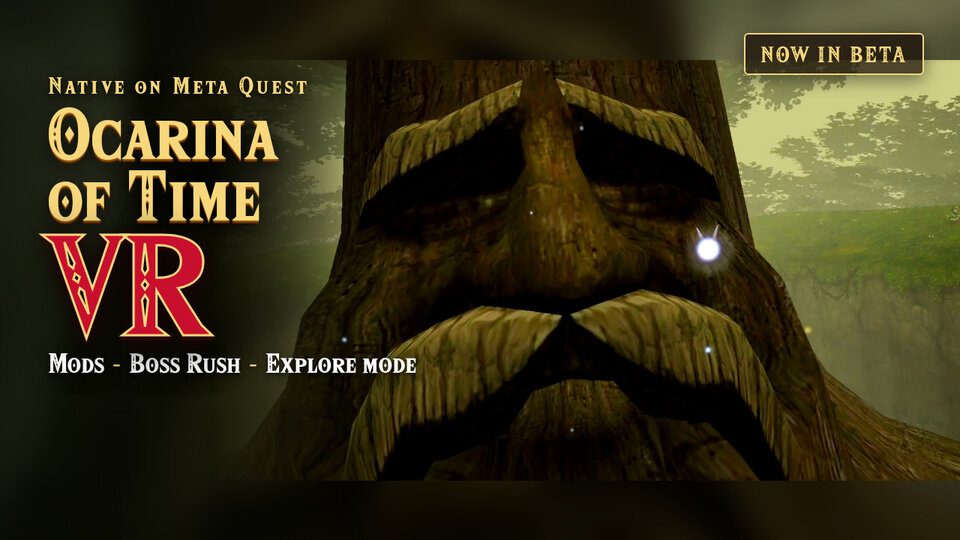
All clips are recordings from a Meta Quest 3S. Some clips use texture mods. The game does not contain mods.
 |  |
| Throw bombs with your arm. | Put a bombchu on the floor. |
 |  |
| The arrow goes along the bow. | Throw the boomerang with your arm. |
 |  |
| Swing the Megaton Hammer. | The Mirror Shield reflects the beam of Twinrova. |
 |  |
| Boss Rush: Ganondorf. | EXPLORE: all the items from the start. |
 |  |
| Hold the shield in front of you to block. | Quick Setup in VR Settings. |
 | |
| Charge the sword, then swing to do the spin attack. |
[!IMPORTANT] You must own a legal copy of The Legend of Zelda: Ocarina of Time. Make a dump of your own cartridge or disc.
This repository and its releases do not contain game assets. We do not supply ROMs. Do not ask for ROMs or share ROMs in the issues.
Contents
Features
VR
- Stereo 3D. The refresh rate changes automatically between 90 Hz and 72 Hz.
- First-person camera at the eye height of Link. The camera follows your head. A third-person view is also available.
- Automatic world scale for child Link and adult Link.
Physical weapons. All weapons use your hands and your arms:
| Weapon | How |
|---|---|
| Sword, Deku stick, Megaton Hammer | Swing your hand. |
| Spin attack | Put the sword hand at the side of your hip, with the tip of the blade to the back. When the controller vibrates, swing fast. |
| Shield | Hold it in front of you to block. The Mirror Shield reflects the Twinrova beams. |
| Bow, slingshot | Pull the string with your hand. |
| Hookshot | Aim with your hand. The shot goes along the hookshot. |
| Boomerang | Throw it with your arm. |
| Bombs, Deku nuts, bombchus | Take them from your belt, and throw them with your arm. |
Menus and controls
- Item selector: take an item with your hand.
- HUD on the wrist. Menus and the pause screen show on a panel that floats in front of you.
- SoH menu with the Touch controllers and a laser pointer.
- Quick Setup: view, sword hand, turn style, item selector or C buttons, and HUD position.
Game
- Setup on the headset: select your dump, and the headset makes the game files. Ocarina of Time and Master Quest are supported.
- Install mods on the headset with Add Mods: textures, models, and translations.
- EXPLORE: a new file starts as adult Link in the Temple of Time, with all the items, songs, and medallions.
- Boss Rush.
- ARENA: adult Link fights waves of enemies. Each wave is larger and stronger. The game shows the wave and the time when Link dies.
- Update on the headset: the game finds a new release and installs it.
Install
You need:
- a cartridge or disc of Ocarina of Time that you own;
- a PC with Windows, macOS, or Linux;
- a USB-C cable for the headset.
Do these steps one time.
1. Make a dump of your game
Use one of these versions:
| Platform | Region | Versions |
|---|---|---|
| Nintendo 64 | Europe (PAL) | 1.0, 1.1 |
| Nintendo 64 | North America (NTSC-U) | 1.0, 1.1, 1.2 |
| Nintendo 64 | Japan (NTSC-J) | 1.0, 1.1, 1.2 |
| GameCube | Europe (PAL) | Ocarina of Time, Master Quest |
| GameCube | North America (NTSC-U) | Ocarina of Time, Master Quest |
| GameCube | Japan (NTSC-J) | Ocarina of Time, Master Quest, Collector's Edition |
Compare the SHA-1 of your dump with
port/docs/supportedHashes.json. We tested
only the European GameCube version.
2. Enable developer mode on the headset
Follow the steps from Meta: Device Setup.
3. Install the game with SideQuest
- Install SideQuest on your PC.
- Connect the headset to the PC with the USB-C cable.
- In the headset, select Always allow from this computer, then Allow.
- Download
oot-vr-<version>.apkfrom Releases. - Drag the APK into the SideQuest window.
- With the SideQuest file manager, copy your dump into the
Downloadfolder of the headset.
With adb:
adb install -r oot-vr-<version>.apk
adb push <your-dump>.z64 /sdcard/Download/
4. Start the game
- In the headset, open Library > Unknown Sources > OoT VR.
- Select Select ROM, then select your dump in the
Downloadfolder. - Wait some minutes for the extraction. Do not remove the headset.
- Optional: select Allow to use mods. Read Mods.
The game makes oot.o2r from your dump. Then you can delete the dump. The next
starts go directly to the game.
If the game does not start, read "If the game does not start" in
port/Android/README.md.
Update
The game looks for a new release at each start. The headset must have an internet connection.
- When a new release is available, the menu opens on the file select screen. You can also select VR Settings > Update at any time.
- Select Update. Wait for the download.
- The first time, the headset asks for a permission. Select Settings, turn on Allow from this source, and go back.
- On the panel of the installer, confirm the install. The game closes.
- Open OoT VR again. Your saves stay.
If your version does not have VR Settings > Update, install the new release with SideQuest one time. Do the steps in 3. Install the game with SideQuest.
Mods
The game loads Ship of Harkinian mods: .o2r, .otr, .zip, and .7z.
[!IMPORTANT] The mods are not part of oot-vr. Their authors give them. This project does not keep copies.
To install a mod, the game needs access to the oot-vr/ folder. Select VR
Settings > Mods > Allow Access, and turn on the permission for OoT VR.
To change the load order, open the SoH menu and select Settings > Mod Menu. When two mods change the same texture, the higher mod shows.
Automatic install
The headset must have an internet connection.
- Select VR Settings > Mods.
- Select Download below a mod, and then select Download again.
- Restart the game.
Manual install
- Download the mod from the page of its author.
- Copy the file into the
Downloadfolder of the headset with SideQuest. - Select VR Settings > Mods > Add Mods, and select the file.
- Restart the game.
Request a mod
Open a mod request.
Remove a mod from the Mod list
Open a removal request. You do not need to give a reason.
Controls
The right hand holds the sword, the boomerang, and the items that you swing. Either hand takes a bomb, a bombchu, or a Deku nut from the belt. The left hand holds the shield, the bow, the slingshot, the hookshot, and the ocarina.
| Control | Action |
|---|---|
| Left thumbstick | Move Link. |
| Right thumbstick ← → ↓ | Put the C-Left, C-Right, or C-Down item in your hand. |
| Right thumbstick ↑ | Talk to Navi. |
| Right thumbstick click (hold) | Open the item selector. Move your hand to an item, then release. |
| Left trigger | Use the item. For the bow, hold to pull the string, release to shoot. |
| Right trigger | Z-target. |
| Right grip | Boomerang: hold, throw, release. Bow, slingshot: pull the string. |
| Both grips (hold) | Hold the sword and the shield. |
| A button | N64 A: action, talk, roll. |
| B button | N64 B. |
| Y button | Open or close the SoH menu. |
| Left Menu button | Start: open the pause screen. |
| Left grip / right grip | Previous page / next page of the pause screen. |
Items
| Item | Use |
|---|---|
| Sword, Deku stick, Megaton Hammer | Swing your hand. |
| Spin attack | Put the sword hand at the side of your hip, with the tip of the blade to the back. The charge starts, and the controller vibrates. Move the charged sword as you want, then swing fast. With magic, you do the magic spin. |
| Bow, slingshot | Hold the right grip near the string, pull back, release. The left trigger also shoots. The aim mark shows where the shot hits. |
| Hookshot | Point the hookshot. The aim mark shows where the shot hits. |
| Boomerang | Hold the right grip, throw with the arm, release the grip. |
| Bombs | Push a grip at the belt, throw with the arm, release the grip. A slow release drops the bomb. The left trigger also throws. |
| Deku nuts | The same as the bombs. The nut flashes when it touches a wall or the floor. |
| Bombchus | Push a grip at the belt, then release it. The bombchu runs where the controller points, or along a fast hand. The left trigger also puts it down. |
| Empty bottle | Left trigger. |
| Ocarina, spells, masks, full bottles, other items | The item selector uses the item immediately. |
Quick Setup
By default, you turn with your body and the HUD is on the wrist. To change it, go to VR Settings > Quick Setup:
| Setting | Choices |
|---|---|
| View | First Person, Third Person |
| Sword Hand | Right, Left |
| Right Stick | Items, Snap Turn, Smooth Turn |
| Use Items | Item Selector, C Buttons |
| Hearts and Items (HUD) | In Front, On the Wrist, Left Hand, Right Hand |
The right thumbstick takes items or turns. It does not do the two:
| Right Stick | Use Items | Take an item |
|---|---|---|
| Items | Item Selector | Flick the right thumbstick, or hold its click and move your hand. |
| Turn | Item Selector | Hold the right thumbstick click and move your hand. |
| Items | C Buttons | Flick the right thumbstick, or push X, B, or the left Menu button. |
| Turn | C Buttons | Push X (C-Left), B (C-Down), or the left Menu button (C-Right). |
With C Buttons, the right trigger is N64 B, and the left thumbstick click is Start. The belt works only with the item selector. To change a button, go to VR Settings > Controls.
SoH menu
The SoH menu contains VR Settings and the settings of Ship of Harkinian. Push the Y button to open or close it. While the menu is open, the controls operate the menu, not Link.
| Control | Menu action |
|---|---|
| Point a controller at the panel | Move the pointer. |
| Trigger of that hand | Click. |
| Right thumbstick ↑ ↓ | Scroll. |
| Left thumbstick | Move the selection. |
| A button | Accept. |
| B button | Go back. |
| Left grip / right grip | Previous tab / next tab. |
The game does not stop while the menu is open. With C Buttons, C-Right is on the left Menu button.
Ocarina
The ocarina uses the N64 layout:
| Note | Control |
|---|---|
| A (D4) | A button |
| C-Up, C-Down, C-Left, C-Right | Right thumbstick ↑ ↓ ← → |
| Half step up / down | Right grip / left grip |
| Put the ocarina away | B button |
Build from source
Read port/Android/README.md. The script
port/Android/build-apk.sh builds the APK. The same document tells how to make
oot.o2r with the tools of this repository.
Documentation
| File | Contents |
|---|---|
STATUS.md | What works, and where to find the open work |
docs/architecture.md | How the VR layer connects to the game and the engine |
CONTEXT.md | The terms that this project uses |
CONTRIBUTING.md | How to send changes |
AGENTS.md | Rules for contributors and for AI agents |
Credits
- ShinyWindow:
Shipwright-VRandlibultraship-vr. The VR layer comes from these projects: OpenXR, stereo render, first-person camera, physical combat, and many control fixes. - Harbour Masters: Ship of Harkinian 9.2.3 "Ackbar Delta", the base of this port.
- Kenix3:
libultraship. - linkzenic:
Shipwright-Android, Ship of Harkinian on Android arm64 with GLES3. - zeldaret: the decompilation of Ocarina of Time.
License
The code that this project wrote is MIT (LICENSE). Ship of
Harkinian, its VR layer, and the Android wrapper do not have a license.
NOTICE.md gives the license of each directory.
Zelda and Ocarina of Time are trademarks of Nintendo. This project has no connection with Nintendo.